For Surveyors
Activate and Use the B2B App
Your company gives you the app and a code. You activate once, with no login, and your company looks after the licence from then on.
Before You Start
- Use the B2B edition your company installed or sent you, not the DampApp Pro app from the public store. Ask your company if you’re not sure which you have.
- Have the QR code or activation code your company gave you. If your phone is managed by your IT team, the code may already be filled in.
- Connect to the internet for activation. After that, the app works offline too.
Activate the App
- 1
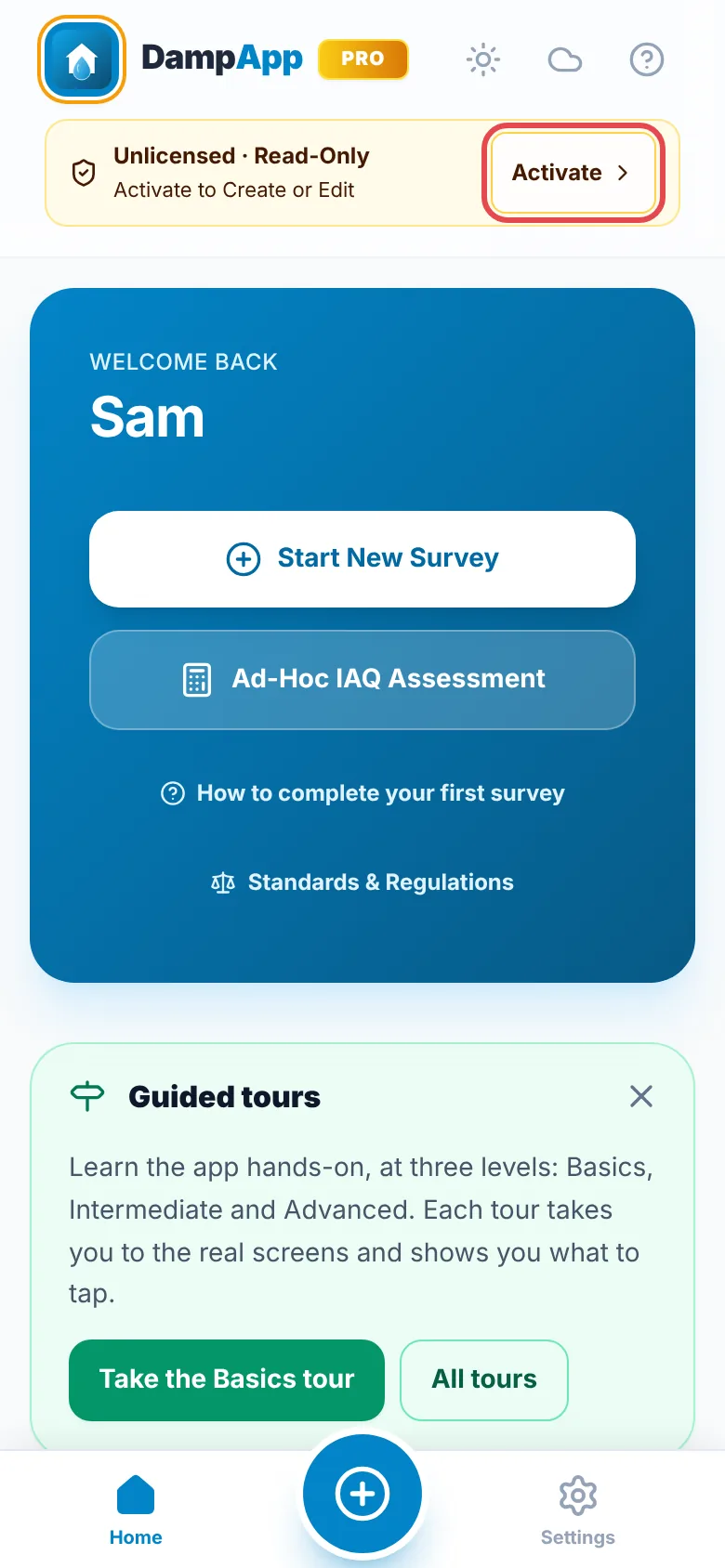
Tap Activate
Until it’s activated, the app shows Unlicensed · Read-Only at the top. Tap Activate beside it. You can also go to Settings → B2B License.
- 2
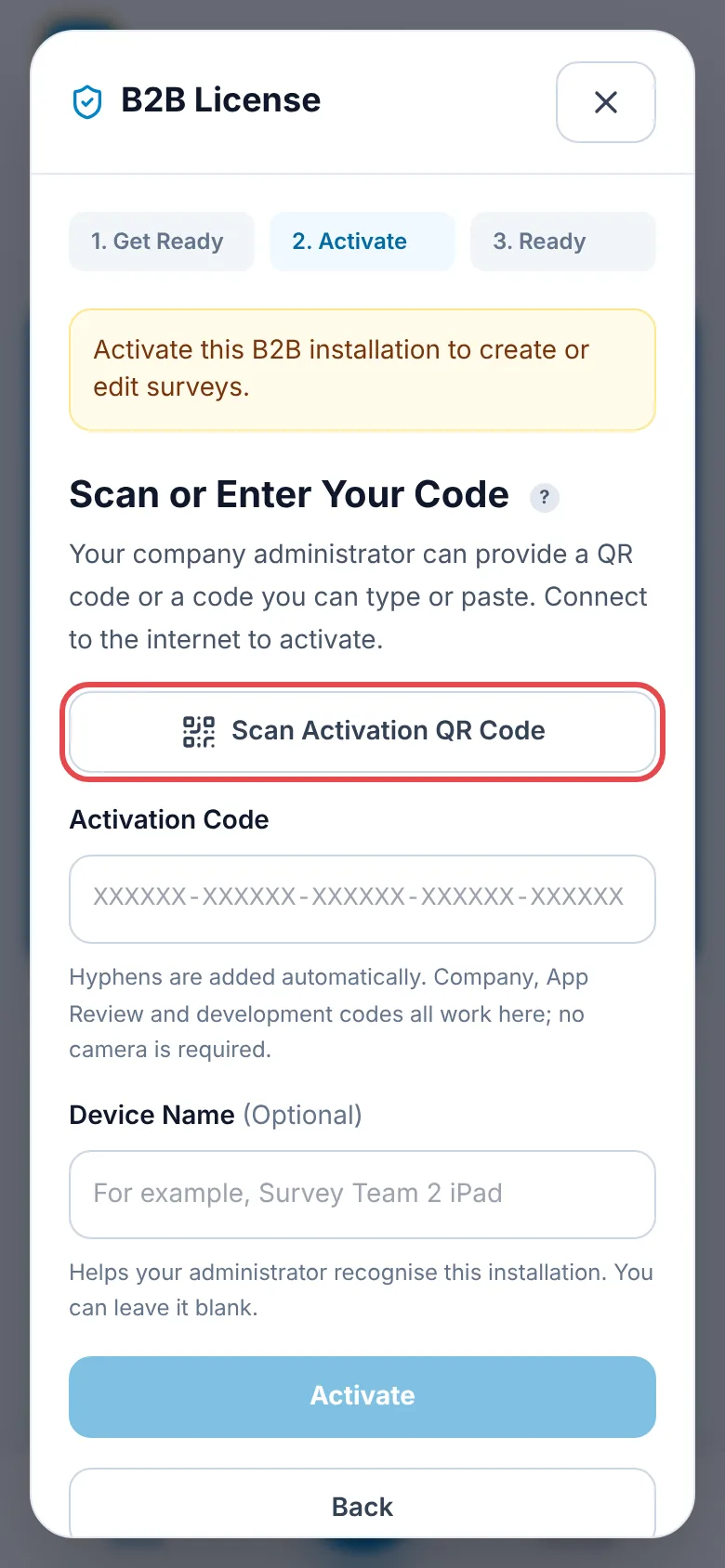
Scan the QR Code or Type the Code
Tap Scan Activation QR Code and point the camera at the QR code. If the QR image is saved on your phone, choose it from there. Or type the code into Activation Code: the hyphens go in for you.
- 3
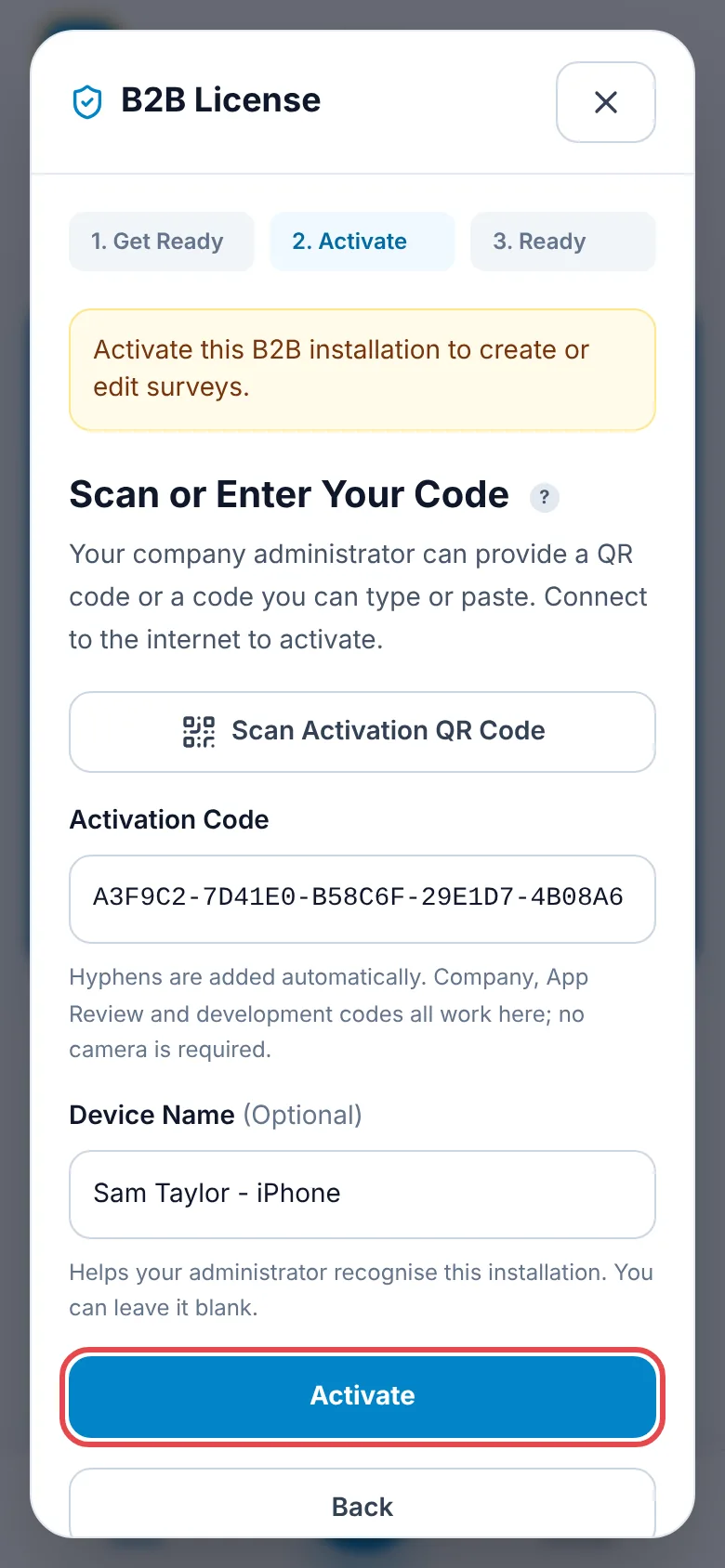
Add a Device Name and Tap Activate
A name such as “Sam Taylor - iPhone” helps your company tell your device apart. You can leave it blank.
- 4
Continue to the App
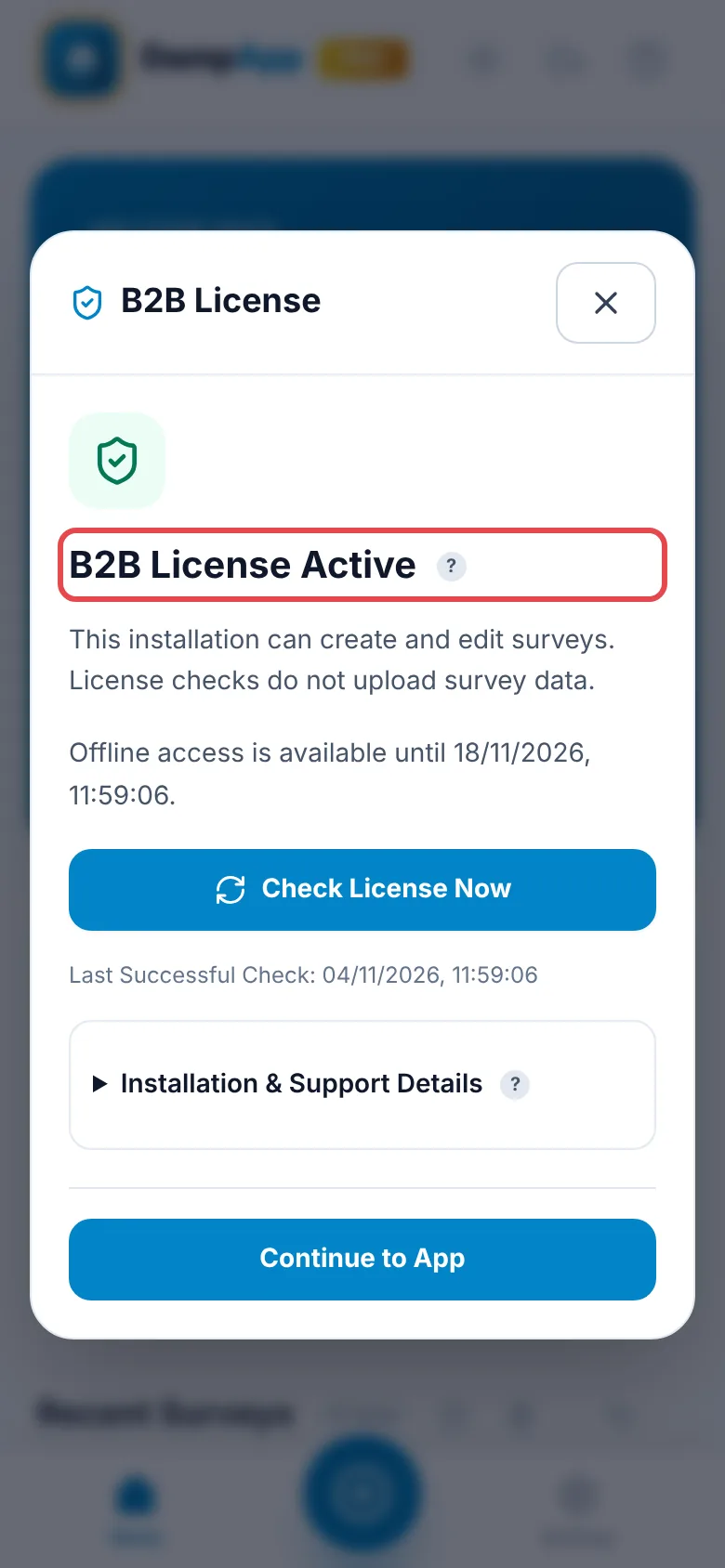
You see B2B License Active. Tap Continue to App, then finish setting up as normal.
What Your Company Sets for You
Your company can set things for every device, such as the company details and logo, report wording, your name and accreditations, and AI and weather keys. These show Set by your organisation in Settings, and some may be locked.
Your email address, signature and email account always stay your own. Your company can’t see your surveys: they stay on your device, and licence checks never send them.
Working Offline
The app checks its licence about every three days when it’s online. After each check it works offline for up to 14 days. Settings → B2B License shows the date your offline access runs to. Connect before then and it renews by itself.
To pick up a change from your company straight away, such as new settings, tap Check License Now on the same screen.
If the App Goes Read-Only
You can still open and read your saved surveys, but not create or edit them. Settings → B2B License says why:
- Connection Required
- The app has been offline too long. Connect to the internet and tap Reconnect & Check License.
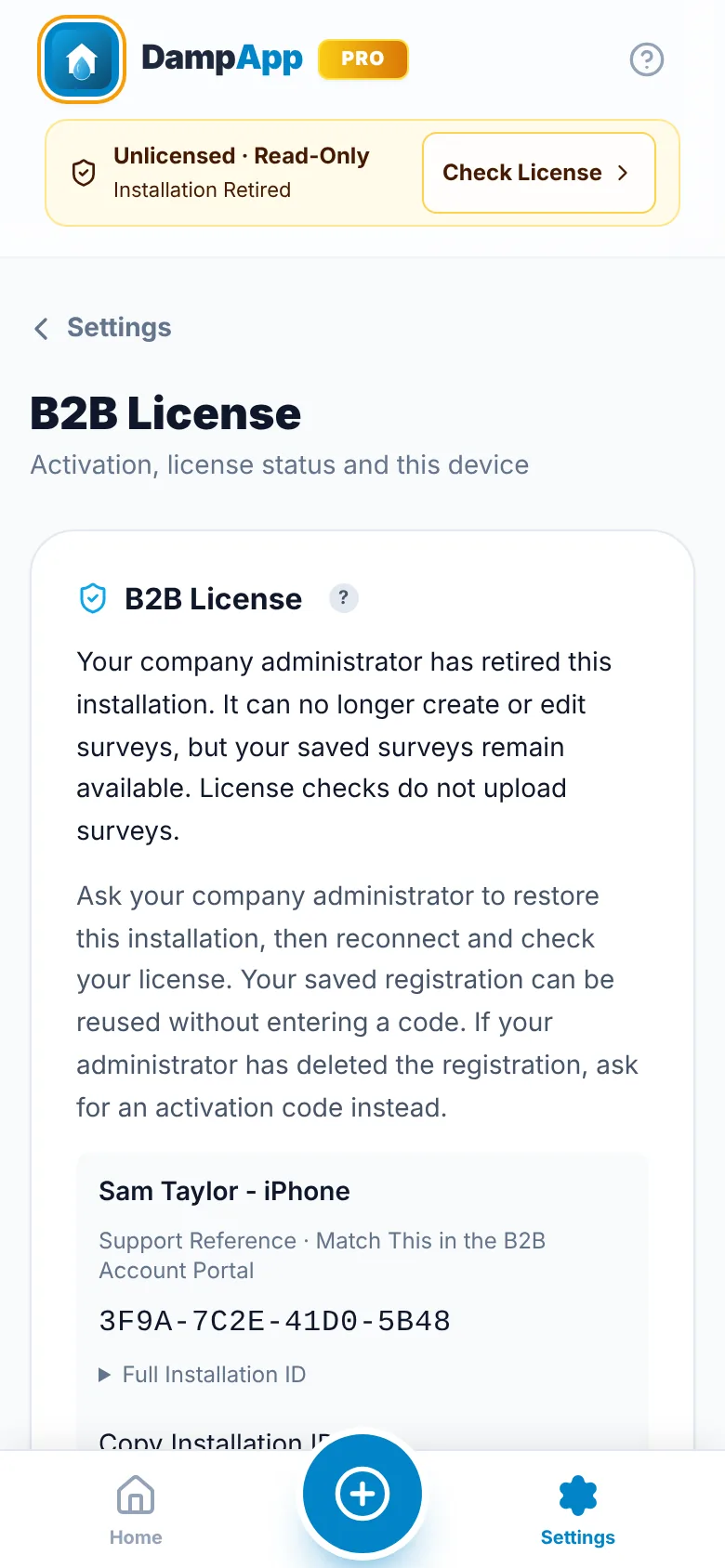
- Installation Retired
- Your company has retired this installation, often because the device was replaced. Ask them to restore it, then tap Check License Now. You won’t need the code again.
- License Expired or License Suspended
- Your company’s licence has ended or been paused. Speak to whoever manages the app at your company.
Getting Help
For codes, licences and settings, ask your company administrator first. Tap Copy Support Details in Settings → B2B License and send it to them. It includes your Installation Reference and app version, and never your code or surveys.
For help with surveys, photos, readings and reports, the main Help Centre covers the app. Ignore anything there about sign-in, subscriptions or Pro: your company’s licence covers those.
Still Stuck?
Tell us what you were trying to do and what you can see. Include your company name, your Organisation ID from the top of your B2B Account and, for a device, its Installation Reference. Never send an activation code or a password.