B2B Help
B2B Help Centre
For companies using the DampApp Pro B2B edition: the administrators who run the B2B Account, the IT team who install the app, and the surveyors who use it.
Set Up Your Team, Step by Step
New to the B2B edition? Work down this list. Each step links to a guide with screenshots.
- 1Sign Your AgreementYour licences start once it’s signed and paid. On a free trial, this can wait.
- 2Sign In to Your B2B AccountWith the email address we invited. No password needed.
- 3Make an Activation CodeOne reusable code and QR setup pack for the whole team.
- 4Set Up App SettingsOptional. Company details, report wording and locked settings for every device.
- 5Install the App on Each DeviceThrough your device management, or Apple redemption codes.
- 6Activate, Then Name Each DeviceMatch each phone or tablet to its row and assign its surveyor.
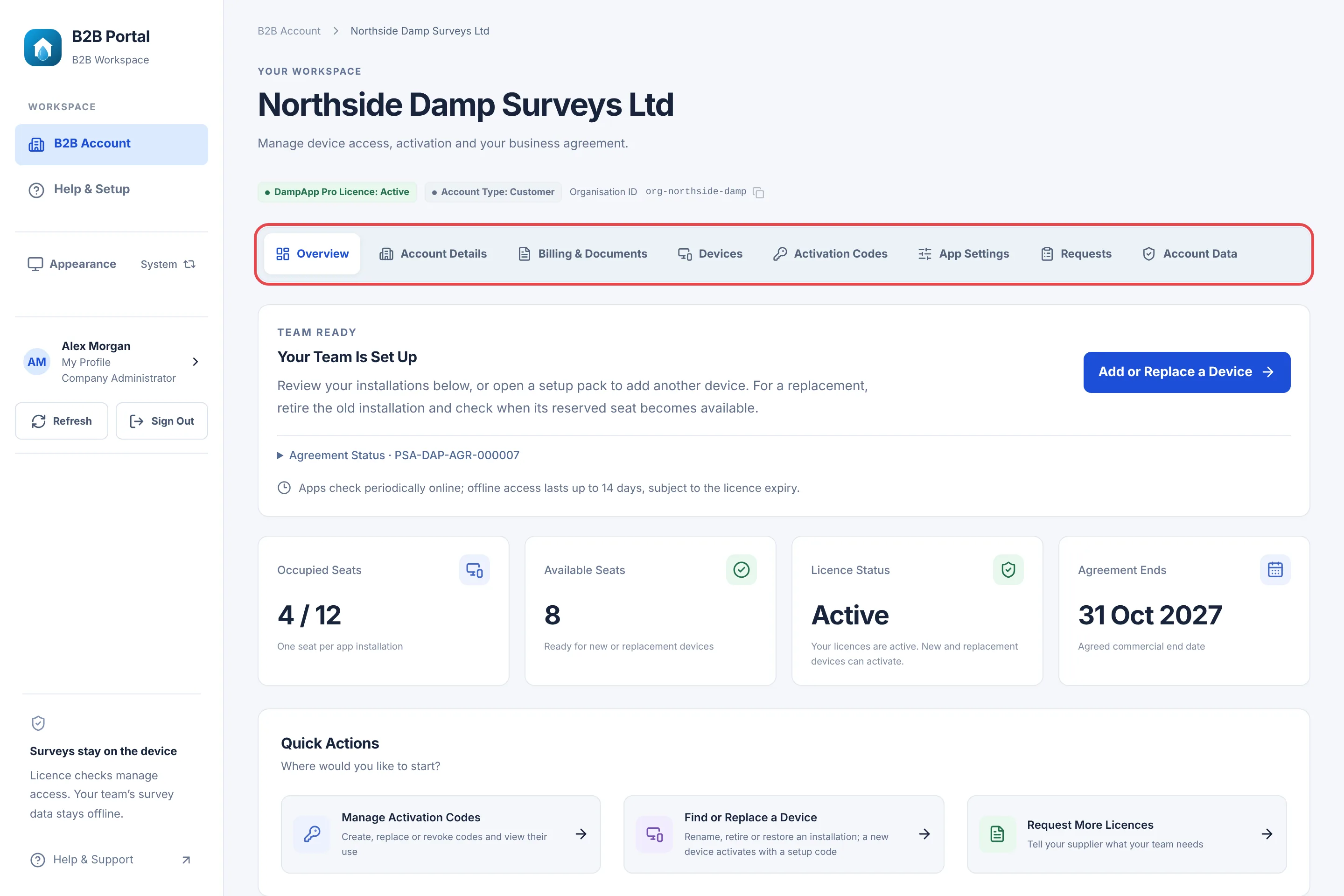 (opens full size in a new tab)
Your B2B Account
Signing in, the sections of the portal, your agreement and invoices.
Devices and Activation
Getting each phone or tablet licensed, and looking after them once they are.
Settings for Every Device
Set things up once in App Settings and every device that follows the profile picks them up.
Install the App
For IT teams. The B2B edition is a private app, delivered through your organisation’s Apple or Google account.
For Surveyors
Your company gives you the app and a code. You don’t need a login.
Fix a Problem
Quick answers for the things that most often go wrong.
Still Stuck?
Tell us what you were trying to do and what you can see. Include your company name, your Organisation ID from the top of your B2B Account and, for a device, its Installation Reference. Never send an activation code or a password.