For Company Administrators
Activation Codes and Setup Packs
One reusable code activates every device on your team. Each phone or tablet that uses it gets its own licence and Installation Reference, and takes one seat.
How Codes Work
- A reusable team code activates as many devices as your licence allows. You usually need only one.
- Making a code never adds seats. When every seat is in use, retire an old device or ask for more licences.
- The code’s end date only stops new activations. Devices already activated carry on until your agreement ends.
- Your licences need to be released first, after your agreement is signed and paid, or while you’re on a free trial.
Make a Code
- 1
Open Activation Codes
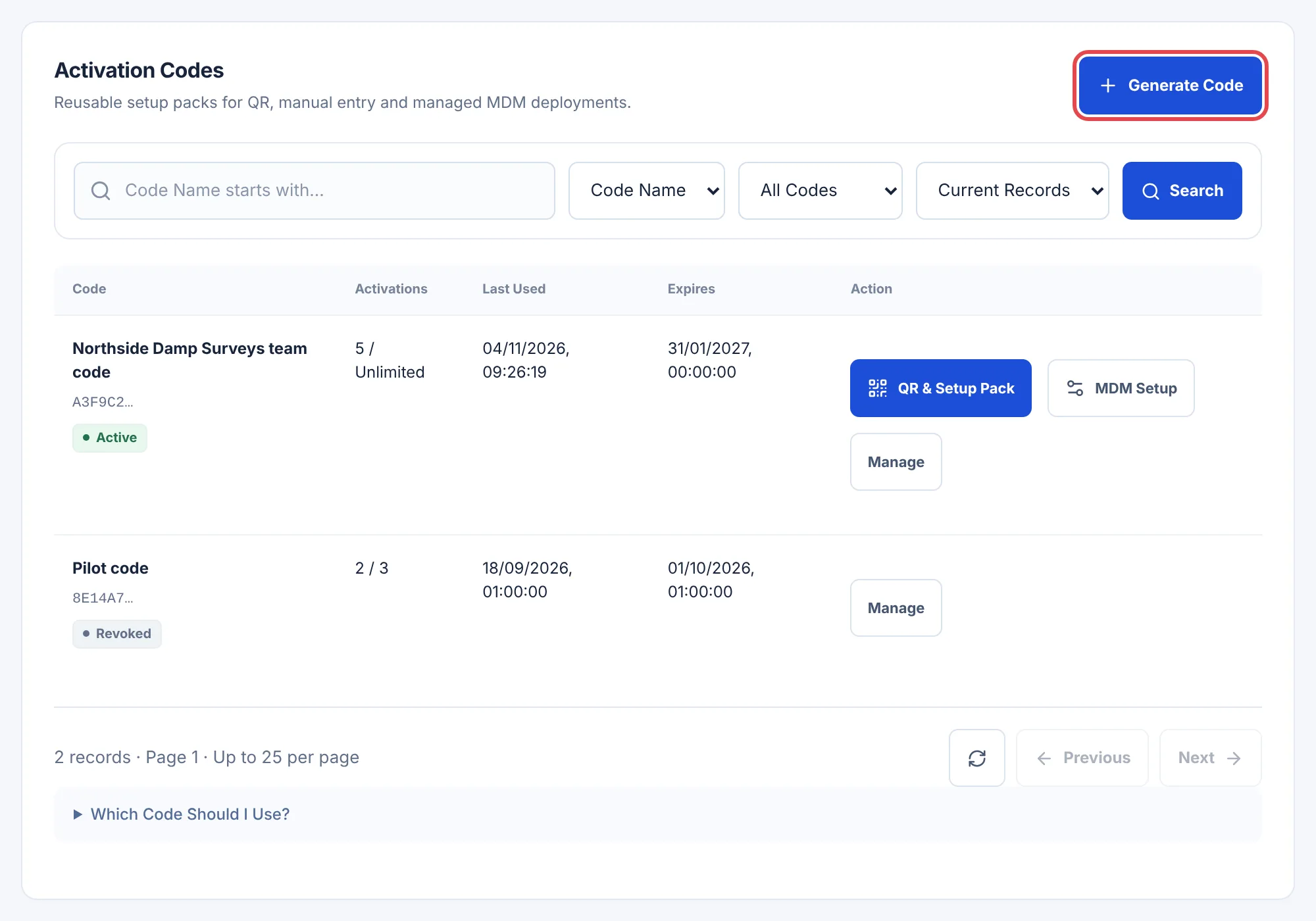
In your B2B Account, open Activation Codes and choose Generate Code. If a current code is already listed, you can use that instead.
- 2
Name It and Choose an End Date
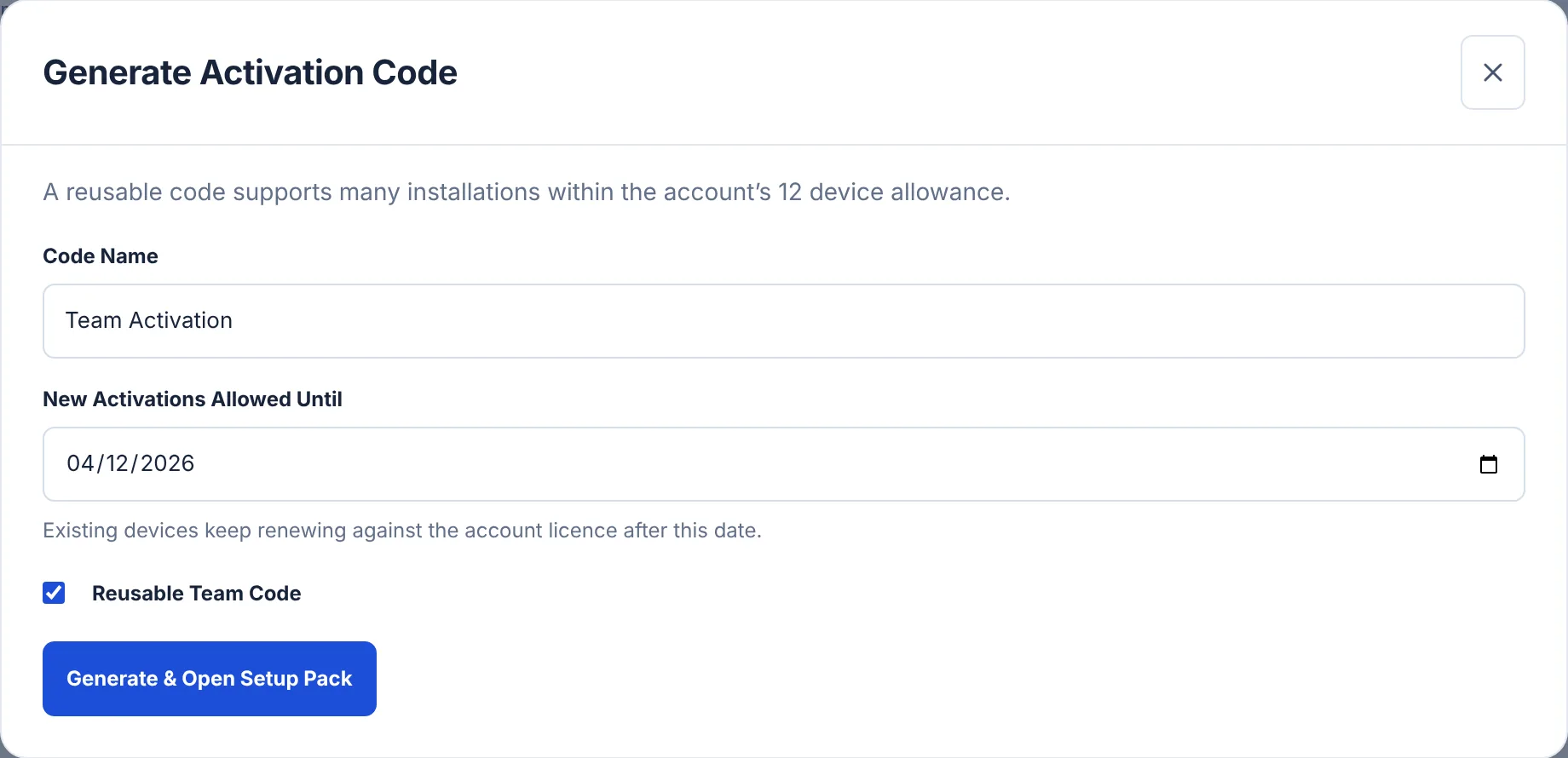
Give it a name your team will recognise and set New Activations Allowed Until. Keep Reusable Team Code ticked, or untick it to set a maximum number of activations.
- 3
Choose Generate & Open Setup Pack
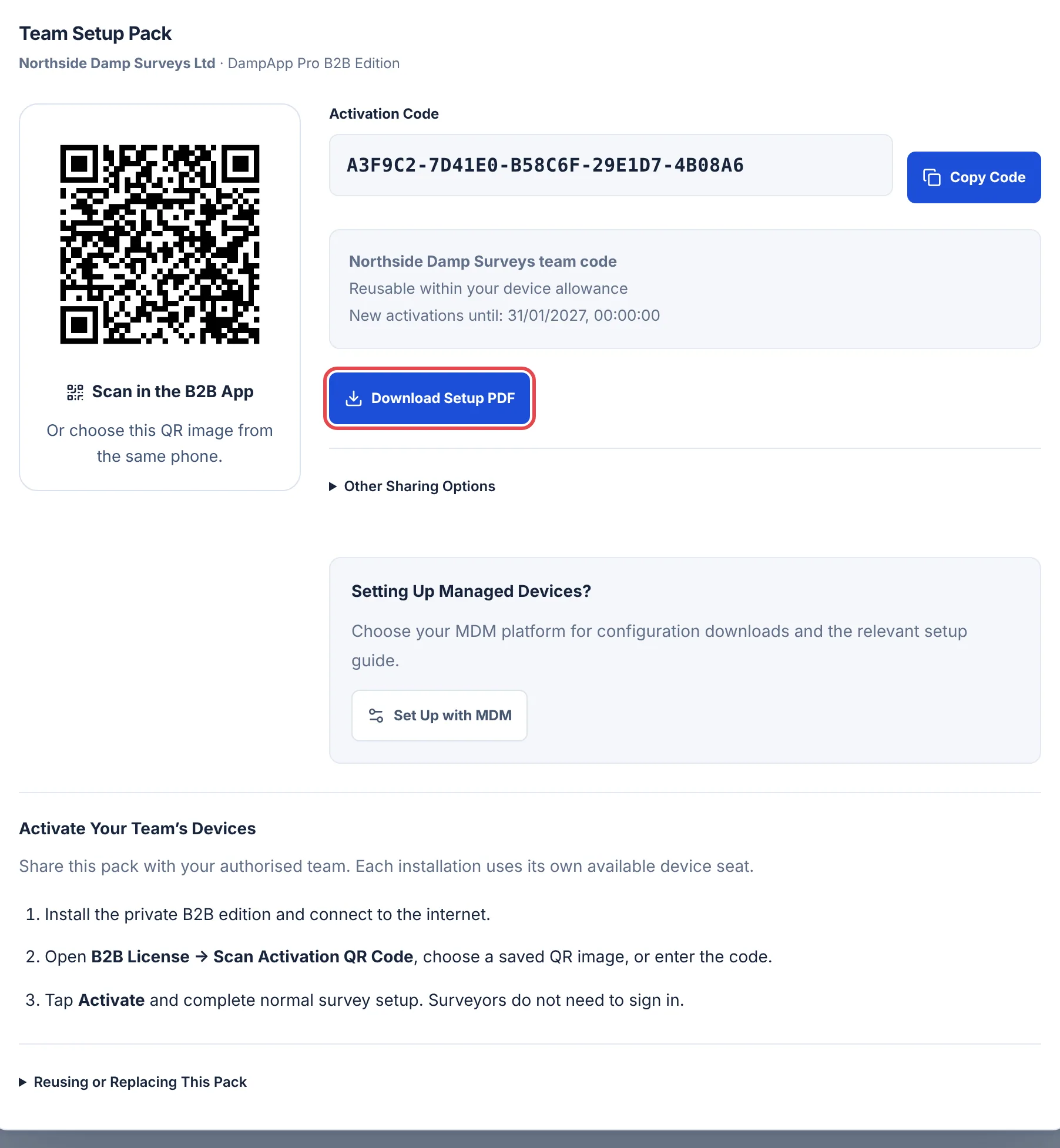
The setup pack opens with the code, its QR image and instructions for your team.
 (opens full size in a new tab)
 (opens full size in a new tab)
Share the Setup Pack
Send the pack to the people who should have it, by your company email or chat. Pick whichever suits your team:
- Download Setup PDF: one page with the QR code, the code and the steps. Print it or attach it.
- Copy Code: the code on its own, for typing into the app.
- Other Sharing Options: copy the code with instructions as a ready-made message, or download just the QR image.
 (opens full size in a new tab)
Set Up Managed Devices
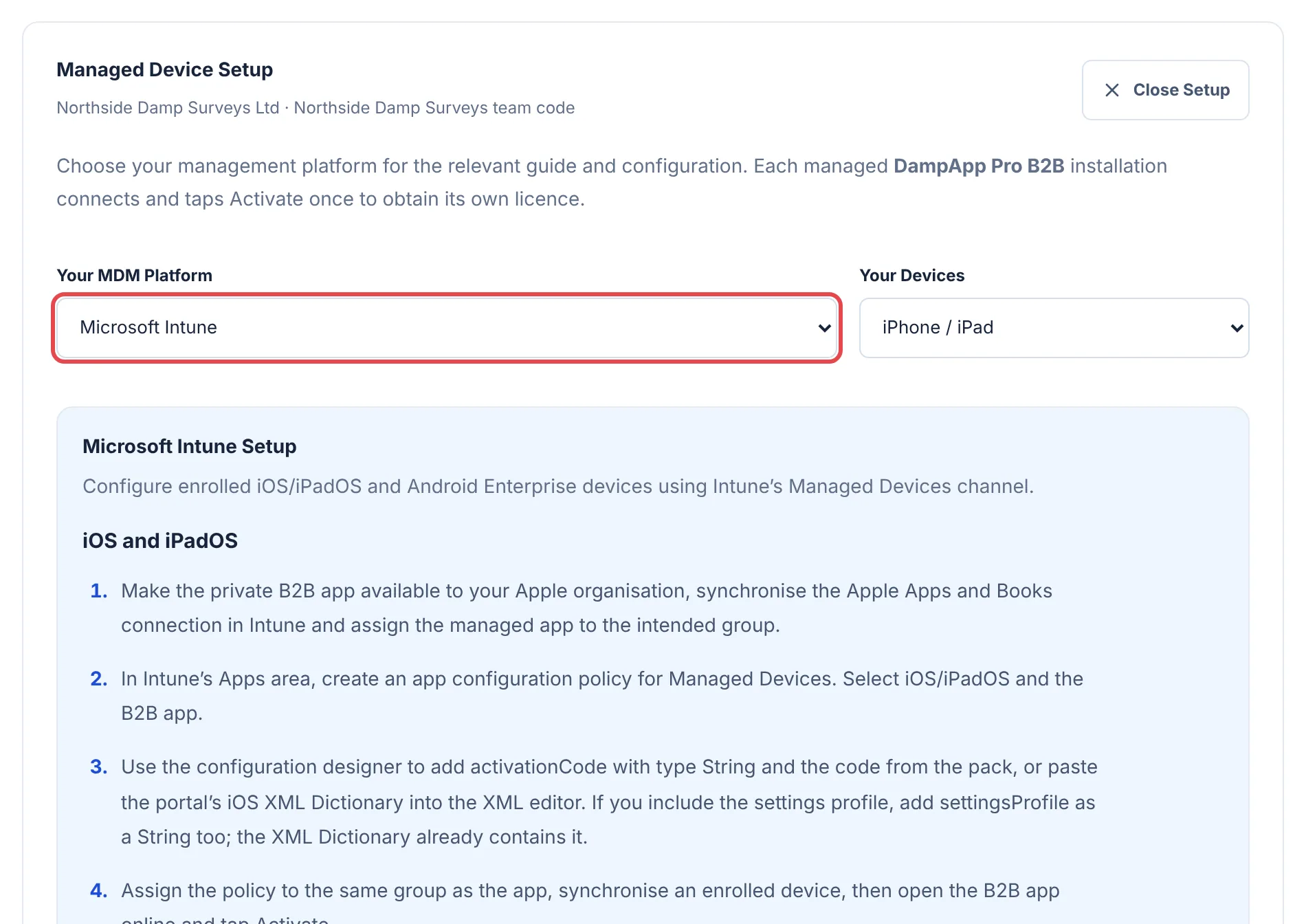
If your devices are managed with Intune, Jamf, Apple Business, Managed Google Play or similar, your IT team can fill in the code for each device. Choose MDM Setup beside the code, then pick your platform and devices. You get the steps for that platform and the configuration to download.
 (opens full size in a new tab)
Each device still taps Activate once and gets its own licence. The installation guides cover each platform in full.
Replace or Revoke a Code
Choose Manage beside the code.
- Replace Code
- Makes a new code and stops the old one activating new devices. Use it if a code has been shared too widely. Send the new pack to your team and update any MDM policies.
- Revoke Code
- Stops new activations with that code, with no replacement.
Either way, devices already activated keep working. PDFs you downloaded earlier don’t update, so delete old copies. Codes made before codes could be reopened can’t be shown again: make a new one.
Still Stuck?
Tell us what you were trying to do and what you can see. Include your company name, your Organisation ID from the top of your B2B Account and, for a device, its Installation Reference. Never send an activation code or a password.