For Company Administrators
Manage Your Team’s Devices
Every installation of the app has its own row in Devices. Name each one so you know whose it is, and retire it when the device is lost or replaced.
Match a Device to Its Row
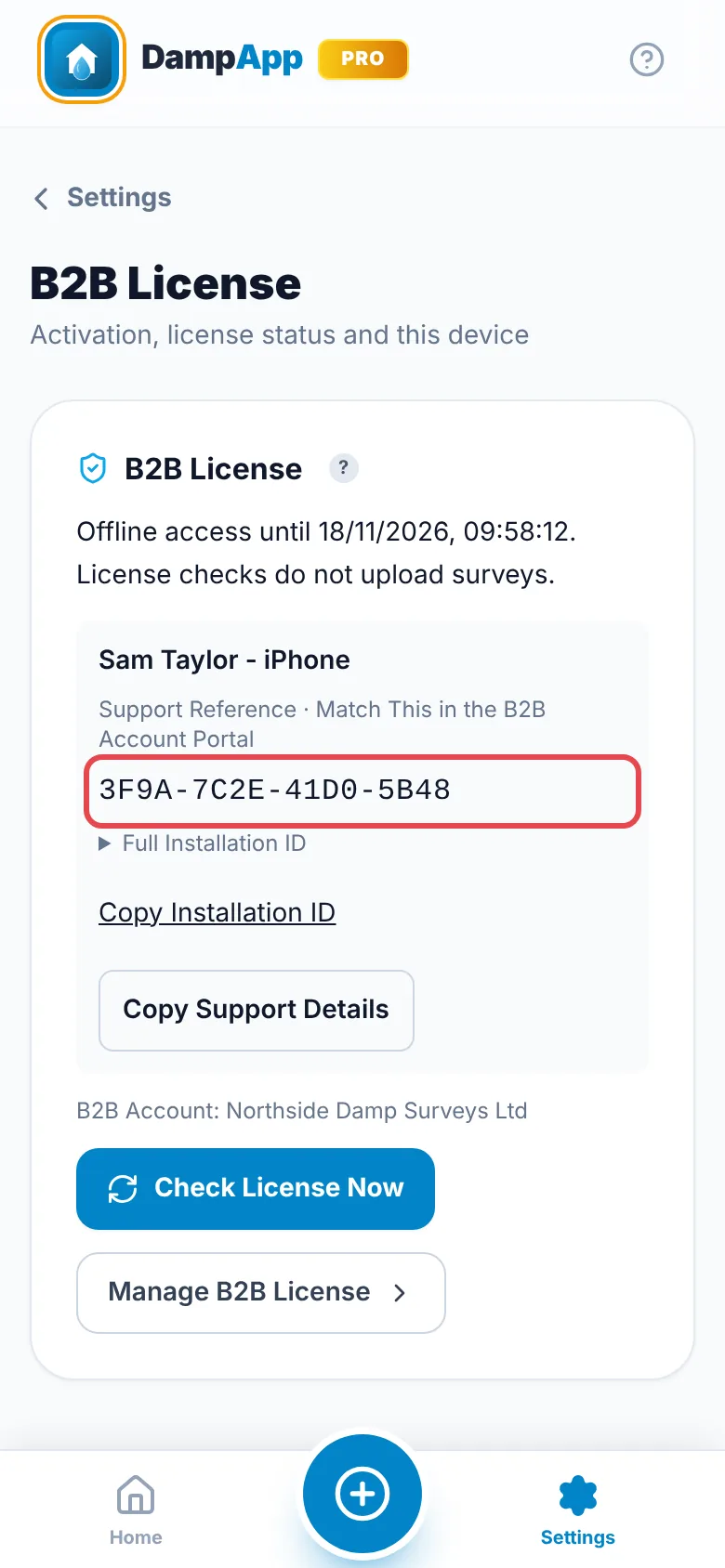
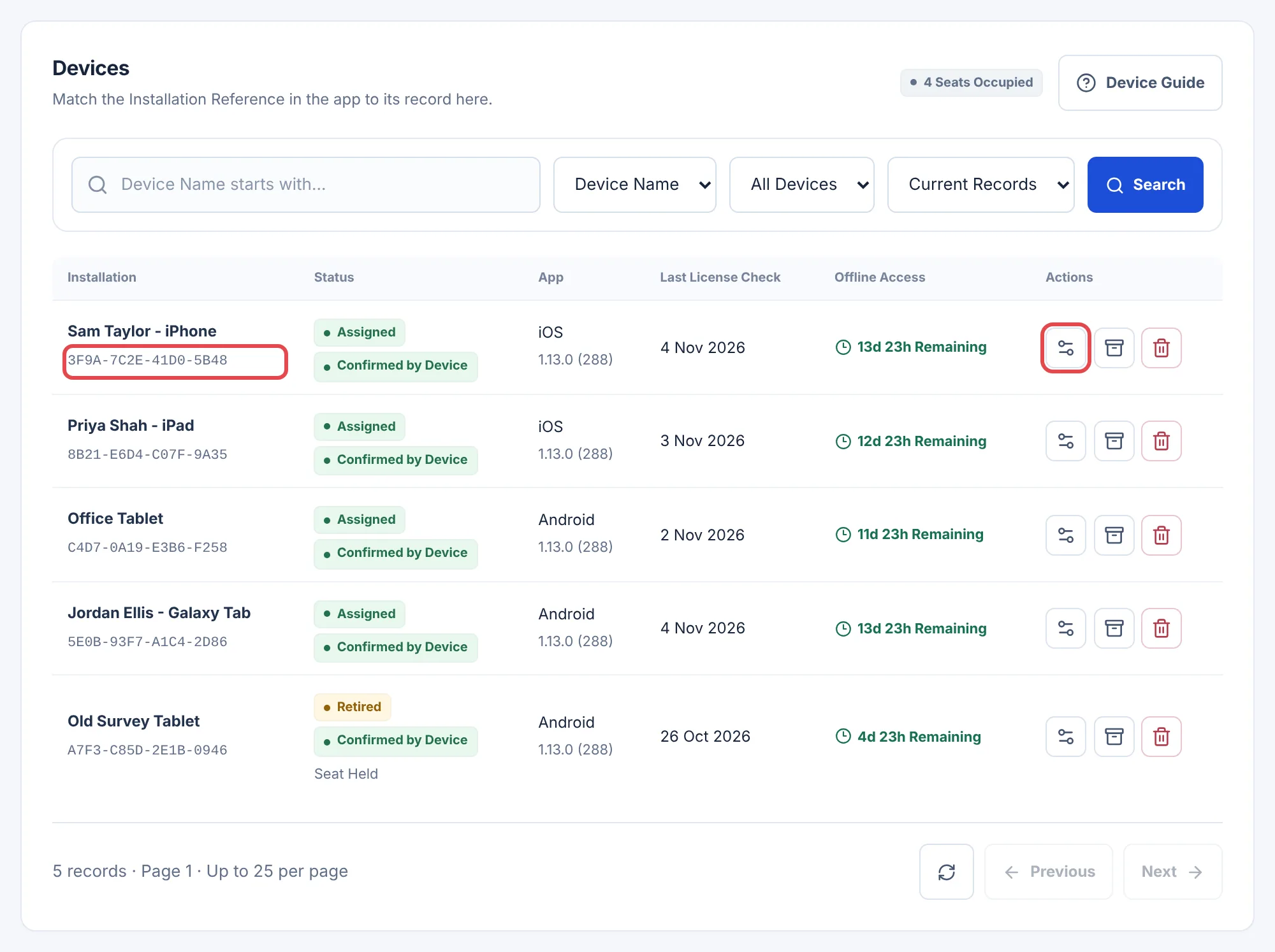
Each installation has an Installation Reference, such as 3F9A-7C2E-41D0-5B48. It appears in the app and in the portal, so you can tell which row is which.
- 1
Find the Reference in the App
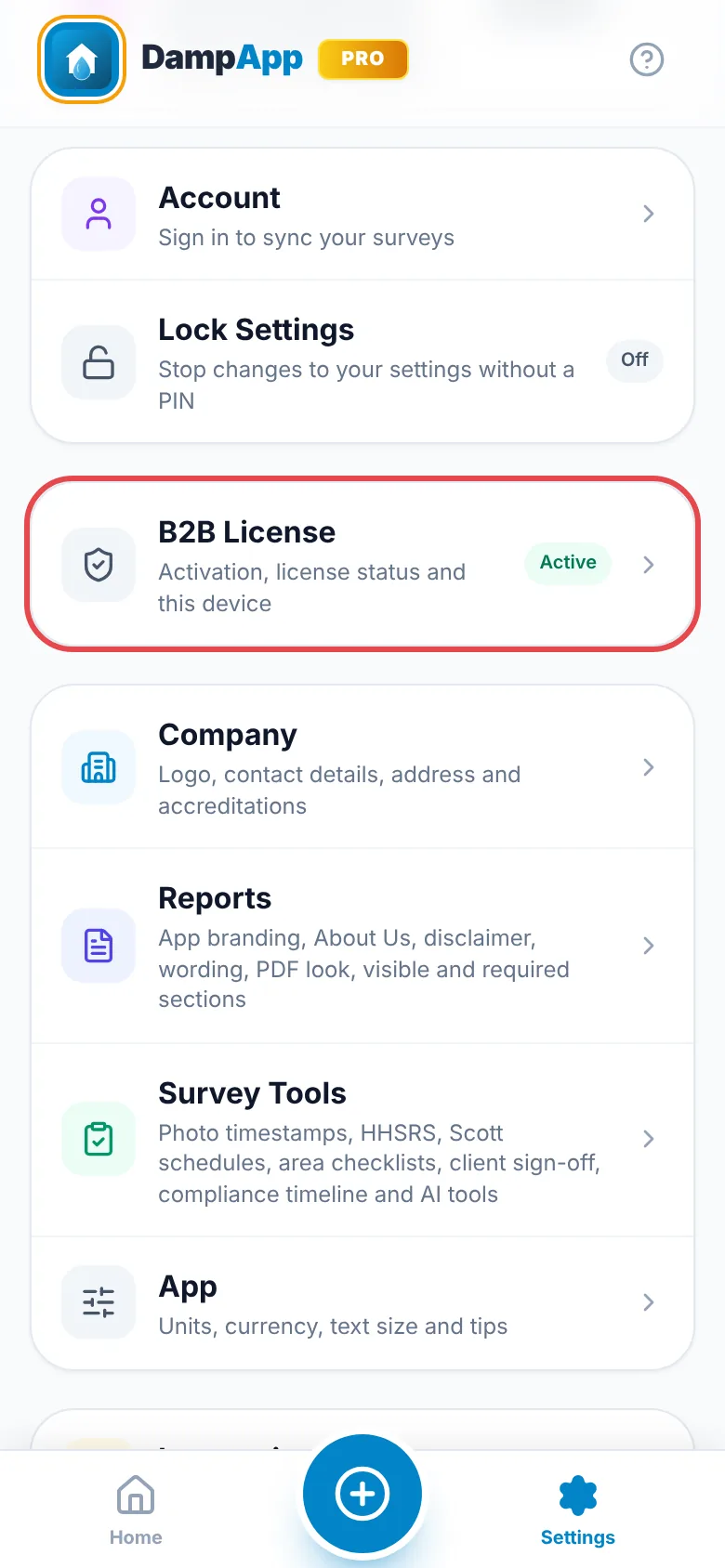
On the device, open Settings and tap B2B License. The Installation Reference is under the device name.
- 2
Search for It in Devices
In your B2B Account, open Devices, switch the search from Device Name to ID, paste the reference and choose Search.
 (opens full size in a new tab)
A phone and a tablet are separate installations, and reinstalling the app can give it a new reference. Check the reference rather than the name.
Name It and Assign Its Surveyor
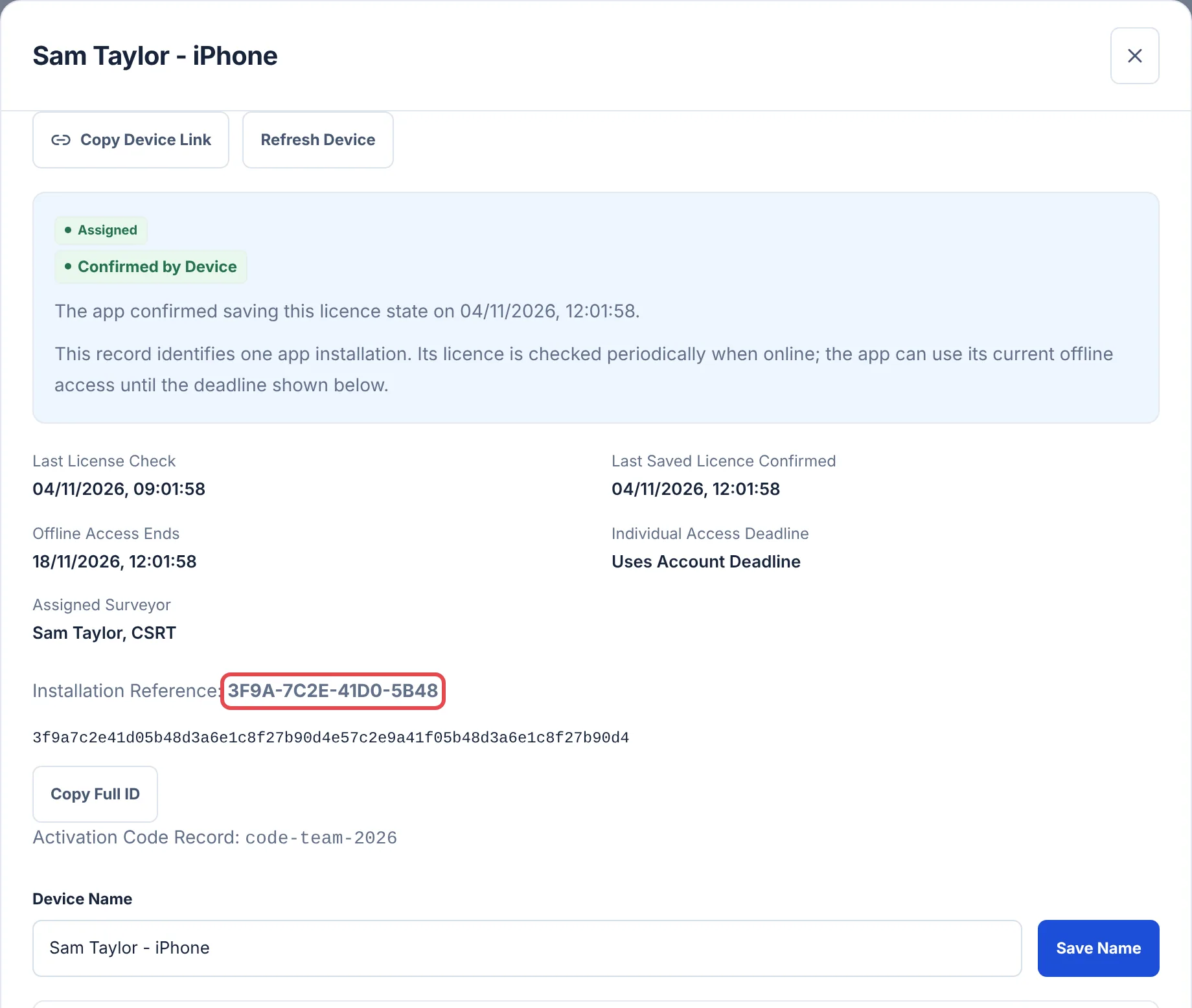
Choose the View and Manage button on the row. Type a name such as “Sam Taylor - iPhone” and choose Save Name. The device gets the new name at its next licence check.
 (opens full size in a new tab)
In the same window, Assign Surveyor fixes the surveyor’s name and accreditations on that device, so every report shows them. See Assign a Surveyor. You can also turn AI tools off for just this device.
Has the Device Got My Change?
Changes save in the portal straight away and reach the device when it next checks in. The badge under the status tells you where it’s got to:
- Awaiting Device Check-In
- The device hasn’t checked in since your change.
- Awaiting Device Confirmation
- We’ve sent it, and the app hasn’t confirmed saving it yet.
- Confirmed by Device
- The app has saved the change.
To speed it up, the surveyor opens B2B License and taps Check License Now. In the portal, Refresh Device checks again.
Offline Access
The app checks its licence about every three days when it’s online. Each check lets it work offline for up to 14 days, and never past your agreement’s end date. Offline Access in the list shows the time left from the last check. It doesn’t mean the device is online now.
If a device runs out, it goes read-only until it connects and checks again. Saved surveys stay on it.
Retire a Lost, Stolen or Replaced Device
- 1
Open the Device
Choose View and Manage on its row and scroll to Retire Installation.
- 2
Pick a Reason and Retire It
Choose Retired, Replaced, Lost or Stolen, then Retire Installation.
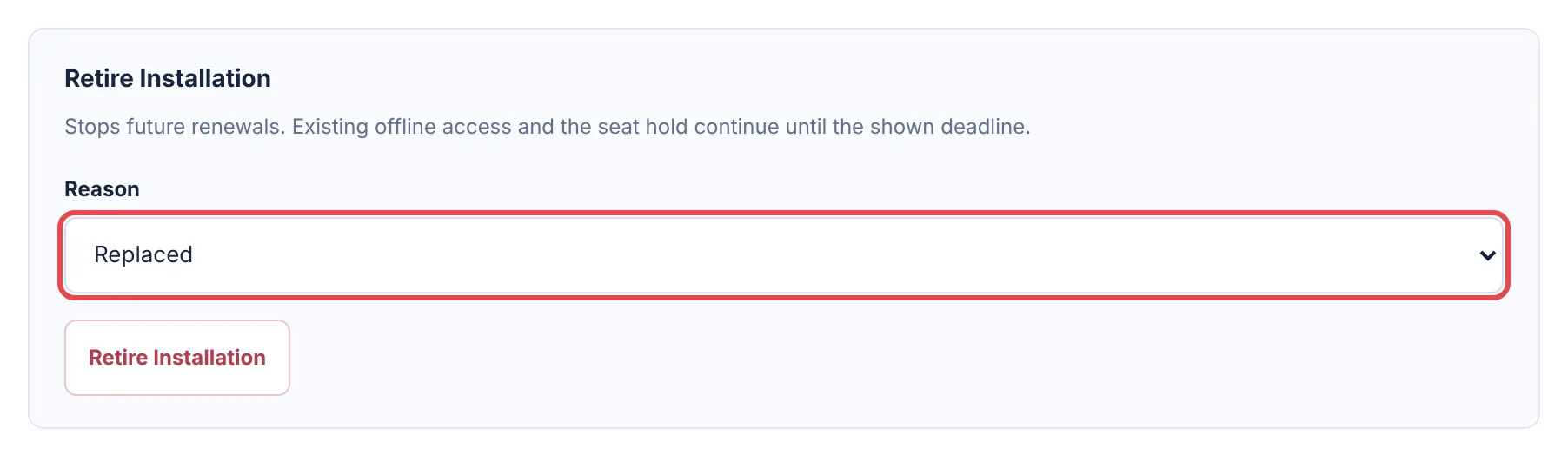 (opens full size in a new tab)
The device goes read-only at its next check, or when its offline access runs out. Its surveys stay readable on it and nothing is deleted.
To set up the replacement, activate the new device with your team code. See Activate and Use the B2B App.
Restore a Retired Device
Retired the wrong one, or found the lost phone? Open it and choose Restore Installation, if you have a free seat. On the device, open B2B License and tap Check License Now. It doesn’t need a new code.
Old rows can be archived with the archive button, and found again by choosing Show Archived instead of Current Records. Delete removes a retired row for good once its seat has been freed.
Need More Licences?
Open Requests and choose Request Licences. See Ask for More Licences.
Still Stuck?
Tell us what you were trying to do and what you can see. Include your company name, your Organisation ID from the top of your B2B Account and, for a device, its Installation Reference. Never send an activation code or a password.