For Company Administrators
Your Agreement, Trial and Licences
Your agreement sets how many devices you can use and for how long. You sign it online, with no account needed, and your licences are released once it’s signed and paid.
Free Trials
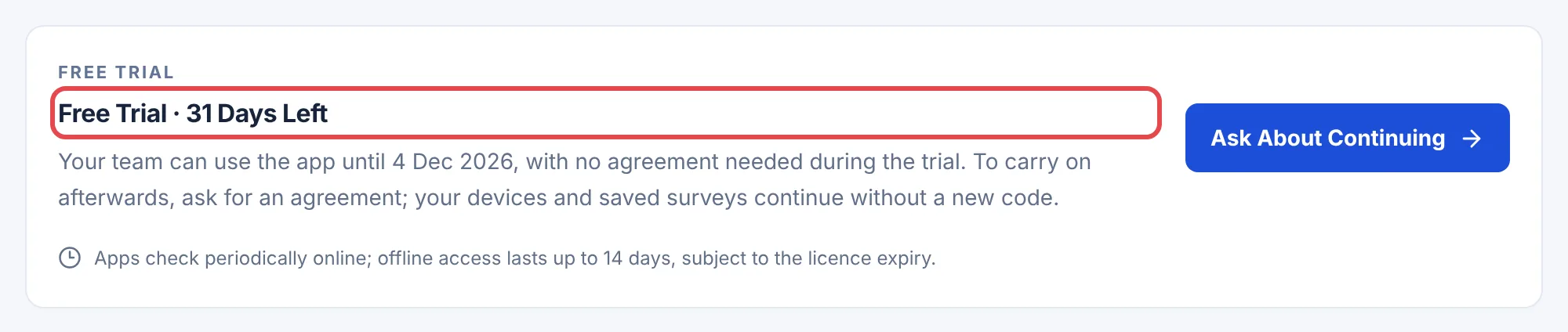
On a free trial, your team uses the app with no agreement until the trial ends. Overview shows how many days are left.
 (opens full size in a new tab)
To carry on afterwards, choose Ask About Continuing and we’ll send an agreement. Your devices and saved surveys carry on without a new code.
Sign Your Agreement
We email your agreement with a Review & Accept Agreement button. You don’t need to sign in. Whoever signs must be allowed to sign for your company.
- 1
Check Your Account Details First
Your legal name, address and billing contact go on the agreement. If anything is wrong, correct it in Account Details or tell us before signing.
- 2
Open the Link and Read the Summary
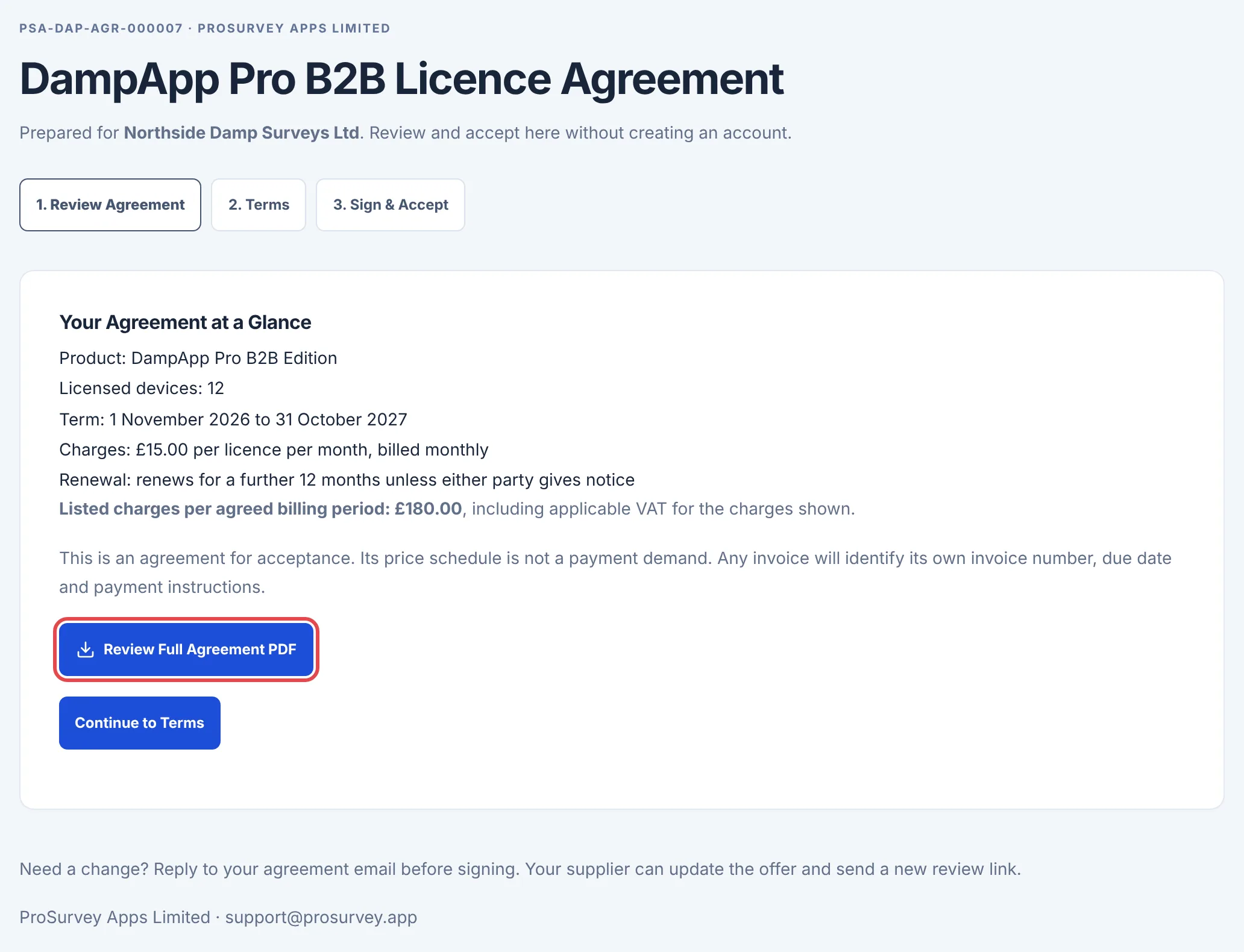
The summary shows the devices, term, charges and renewal. Choose Review Full Agreement PDF and read it in full. You need to open it before you can sign.
- 3
Read the Terms
Choose Continue to Terms. If you want anything changed, reply to the email before signing and we’ll send a new link.
- 4
Sign and Accept
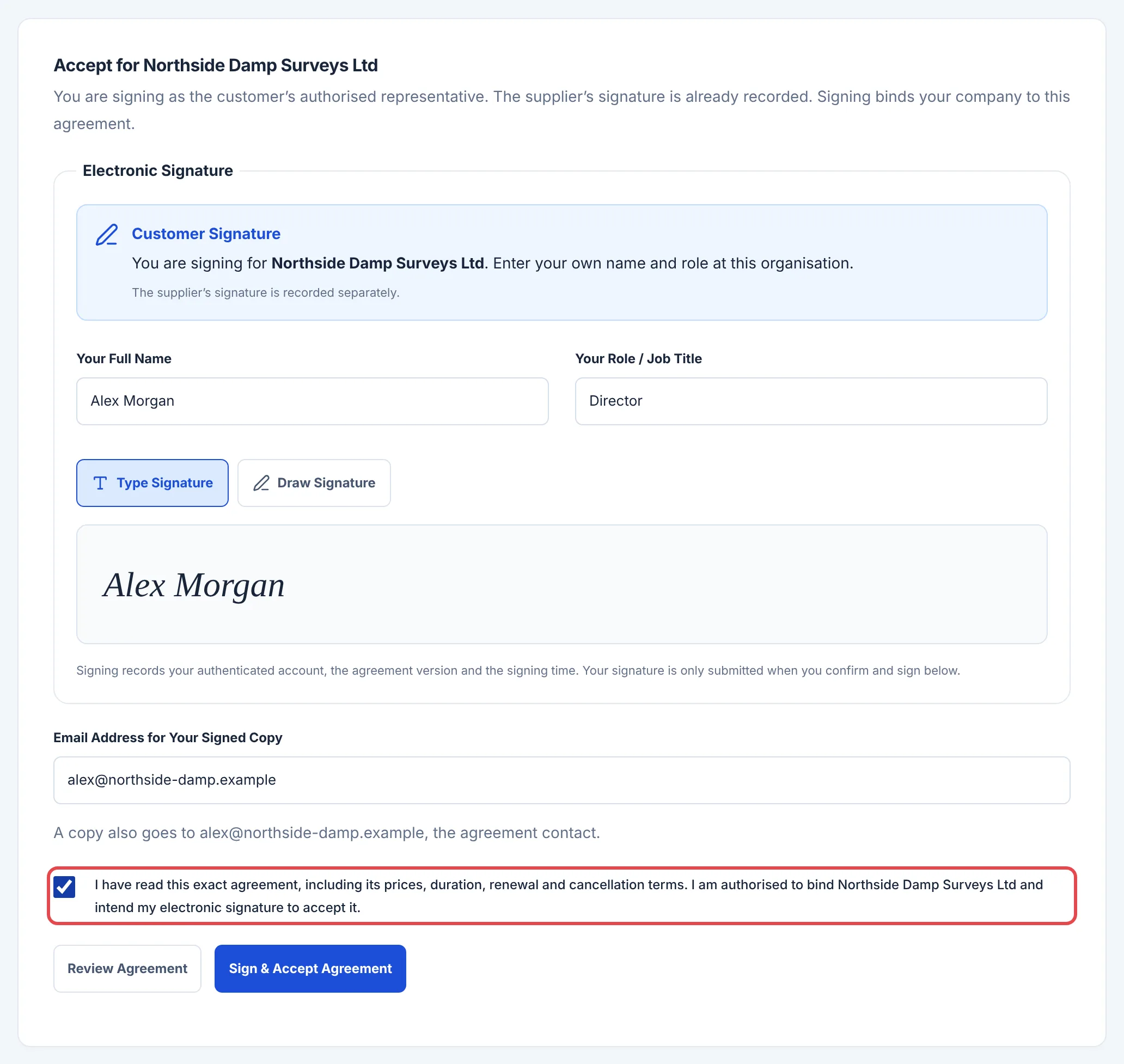
Enter your name and job title, then type or draw your signature. Tick the box to confirm you’ve read it and can sign for your company, then choose Sign & Accept Agreement.
 (opens full size in a new tab)
 (opens full size in a new tab)
You can also sign from Billing & Documents in your B2B Account: open the agreement and choose Read Current Agreement PDF first.
Keep a Signed Copy
Once you sign, a PDF copy is emailed to the address you chose and to the agreement’s contact, and the signing link closes. The agreement stays in Billing & Documents, where Download Signed Agreement gives the copy with both signatures. Earlier versions stay there too.
When Your Licences Start
The agreement isn’t an invoice. We send the first invoice separately, and release your licences once it’s paid, unless we’ve agreed payment terms with you. Paying online releases them as soon as the payment clears. See Paying Your Invoices.
Then make an activation code for your team.
Ask for More Licences
- 1
Open Requests
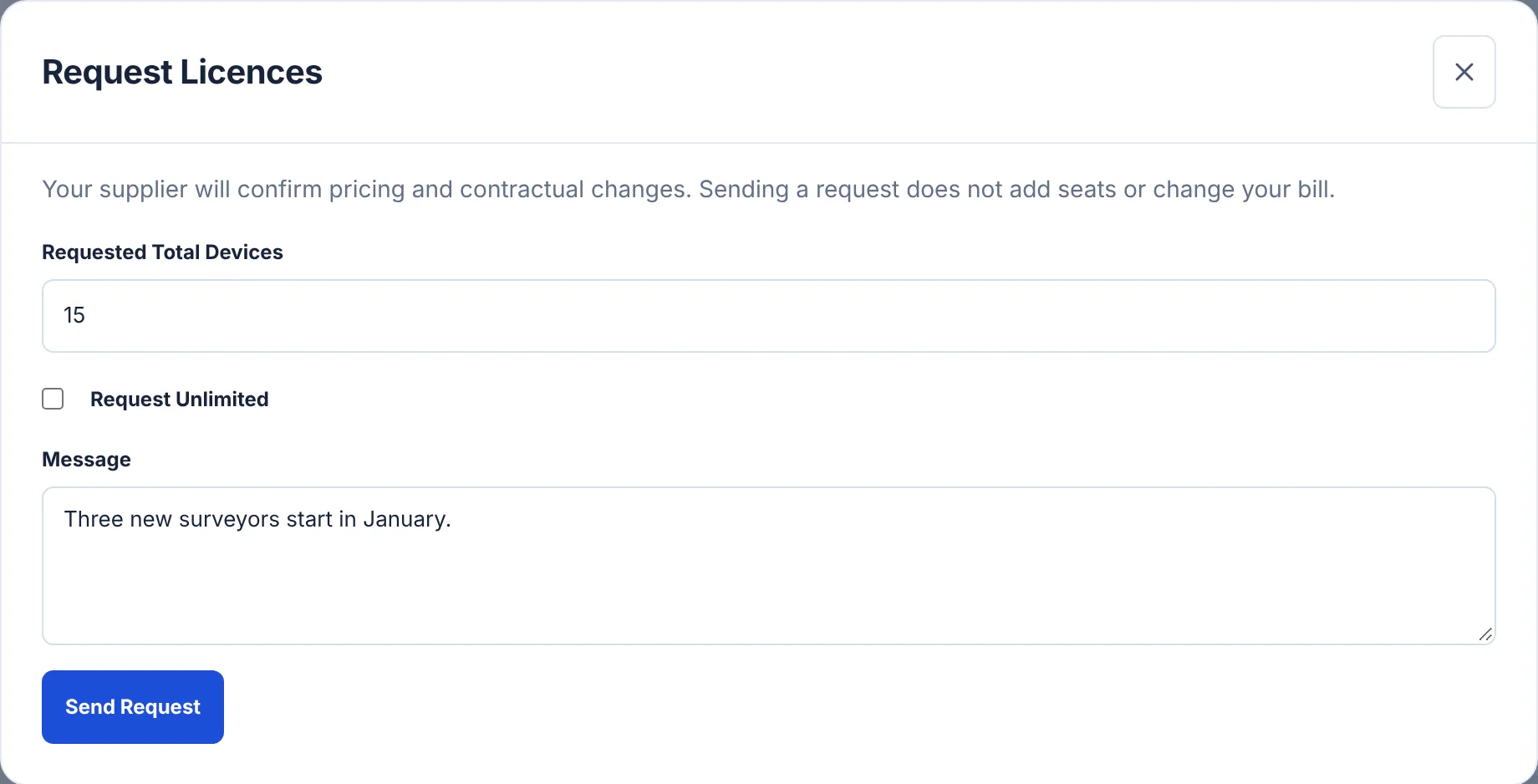
Choose Request Licences.
- 2
Enter the New Total
Enter the total number of devices you need, not how many extra, or tick Request Unlimited. Say when you need them in the message.
- 3
Send the Request
We’ll reply with the price and an add-on to sign. You can follow it in Requests.
 (opens full size in a new tab)
Renewals and Changes
- If your agreement renews automatically, it carries on for the next term without a new signature. The agreement says how to give notice.
- Extra licences part way through usually come as an add-on that ends with your current term.
- Changed terms always need a new signature. A new version doesn’t change the one you already signed.
- Acknowledge Receipt Only confirms you got a document. It doesn’t accept it.
Still Stuck?
Tell us what you were trying to do and what you can see. Include your company name, your Organisation ID from the top of your B2B Account and, for a device, its Installation Reference. Never send an activation code or a password.