For Company Administrators
Sign In and Find Your Way Around
Your B2B Account is where your company manages its licences, devices, app settings and documents. This guide covers who can sign in, how, and what each section is for.
Who Can Sign In
Company administrators sign in to the B2B Account. We link each administrator’s email address to your company, so creating a login doesn’t give access or buy licences on its own.
Surveyors don’t need a login. They activate the app with a code from you: see Activate and Use the B2B App.
Only we can add or remove administrators. Contact support with their name and work email, and tell us straight away when someone should lose access.
Sign In
- 1
Open Your B2B Account
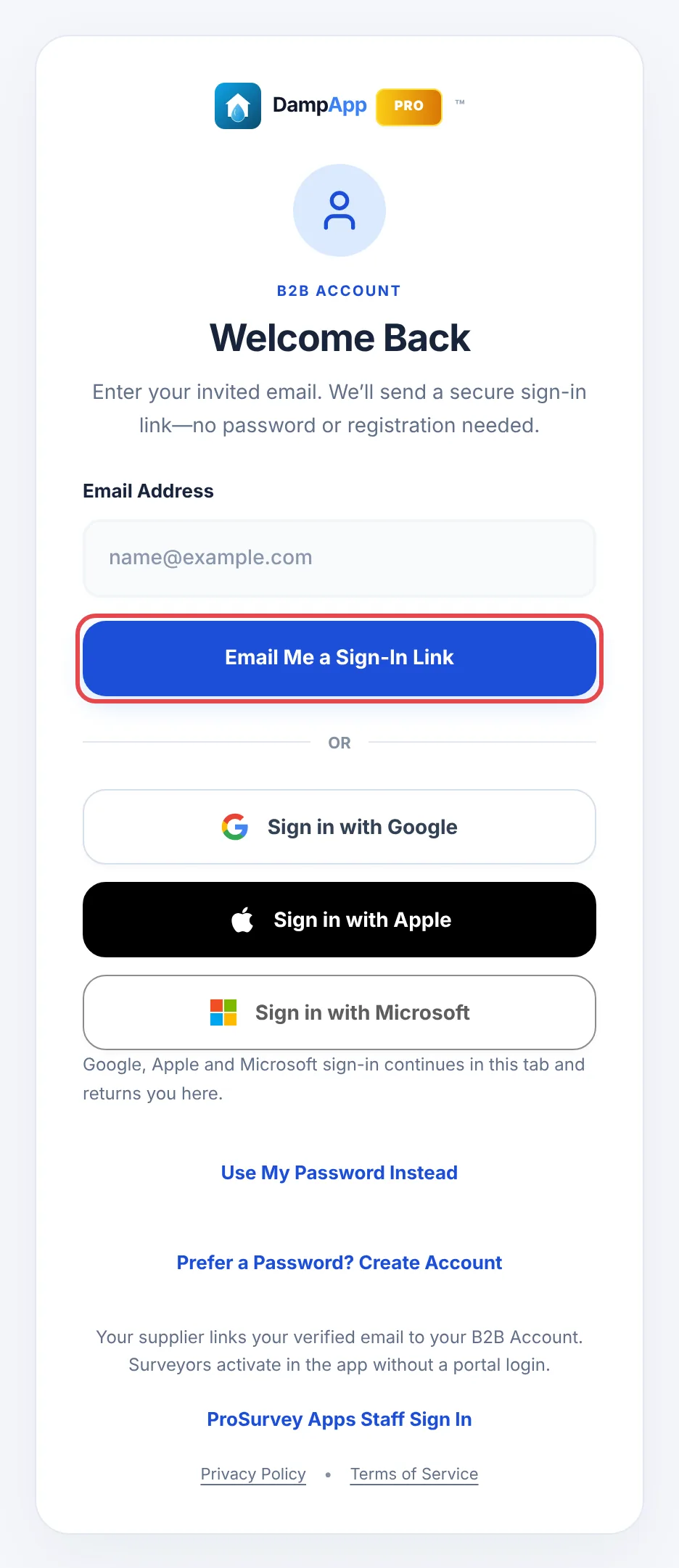
Go to your B2B Account and enter the email address we invited.
- 2
Choose Email Me a Sign-In Link
Open the email and press Continue Securely. The link works once and expires after 15 minutes, so request a new one if it has run out. You don’t need a password.
- 3
Or Use Google, Apple or Microsoft
If your invited email is a Google, Apple or Microsoft account, choose that button instead. You come back to your B2B Account in the same tab.
 (opens full size in a new tab)
- Prefer a Password
- Choose Prefer a Password? Create Account and use your invited email. Next time, choose Use My Password Instead.
- Apple’s Hide My Email
- If you hid your email when signing in with Apple, Apple gives us a relay address instead. Send us the address shown on screen so we can link it to your company.
- Microsoft Asks for Permission
- The first time, Microsoft asks you to let us see your name and email. If your organisation only lets IT approve apps, Microsoft says you need an administrator’s approval. Ask your IT team, or use the emailed link instead.
The Sections of Your B2B Account
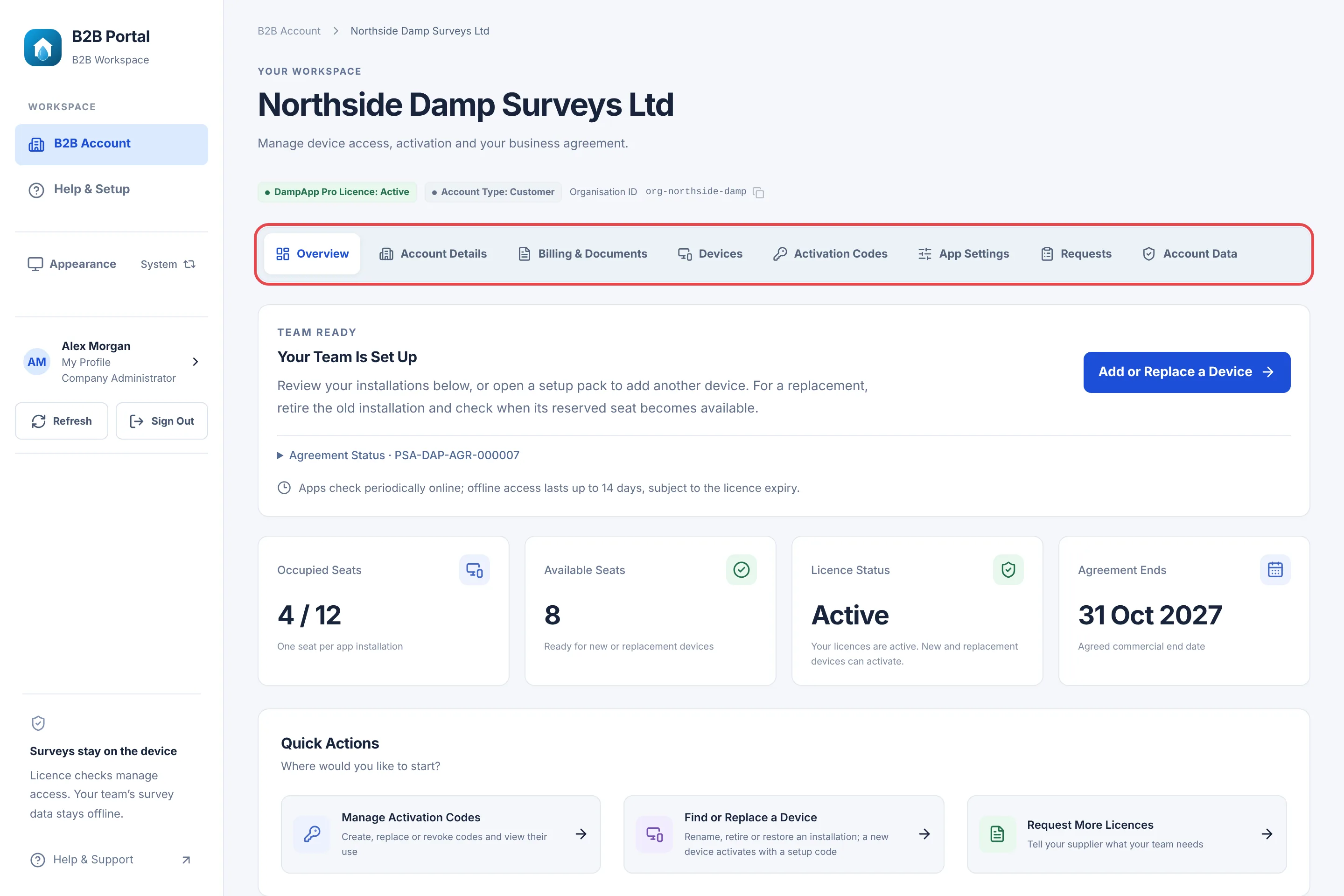
Your company’s name, licence status and Organisation ID sit at the top. Quote the Organisation ID when you contact us. The sections run along the row below it.
 (opens full size in a new tab)
- Overview
- Your next step, seats in use, licence status and quick actions.
- Account Details
- Your company’s legal name, contacts and billing address for our agreements and invoices.
- Billing & Documents
- Your agreement, invoices, credit notes and receipts. See Paying Your Invoices.
- Devices
- Every installation of the app: rename, assign a surveyor, retire or restore. See Manage Your Team’s Devices.
- Activation Codes
- Codes and QR setup packs for your team, and the setup for device management. See Activation Codes and Setup Packs.
- App Settings
- Settings for every device: company details, report wording, AI tools, keys and locks. See the App Settings guide.
- Requests
- Ask for more licences and see our reply.
- Account Data
- Download a copy of your company’s records and documents.
Your browser’s Back and Forward buttons move between sections. To show a colleague a page, copy its address: they still need to sign in with their own access.
Overview
The top card tells you what to do next, such as signing your agreement or activating your first device. Once your team is set up, it shows Add or Replace a Device.
 (opens full size in a new tab)
Occupied Seats counts installations, not people. A surveyor with a phone and a tablet uses two. Agreement Ends is your agreed end date, which is separate from how long each device can work offline.
Account Details
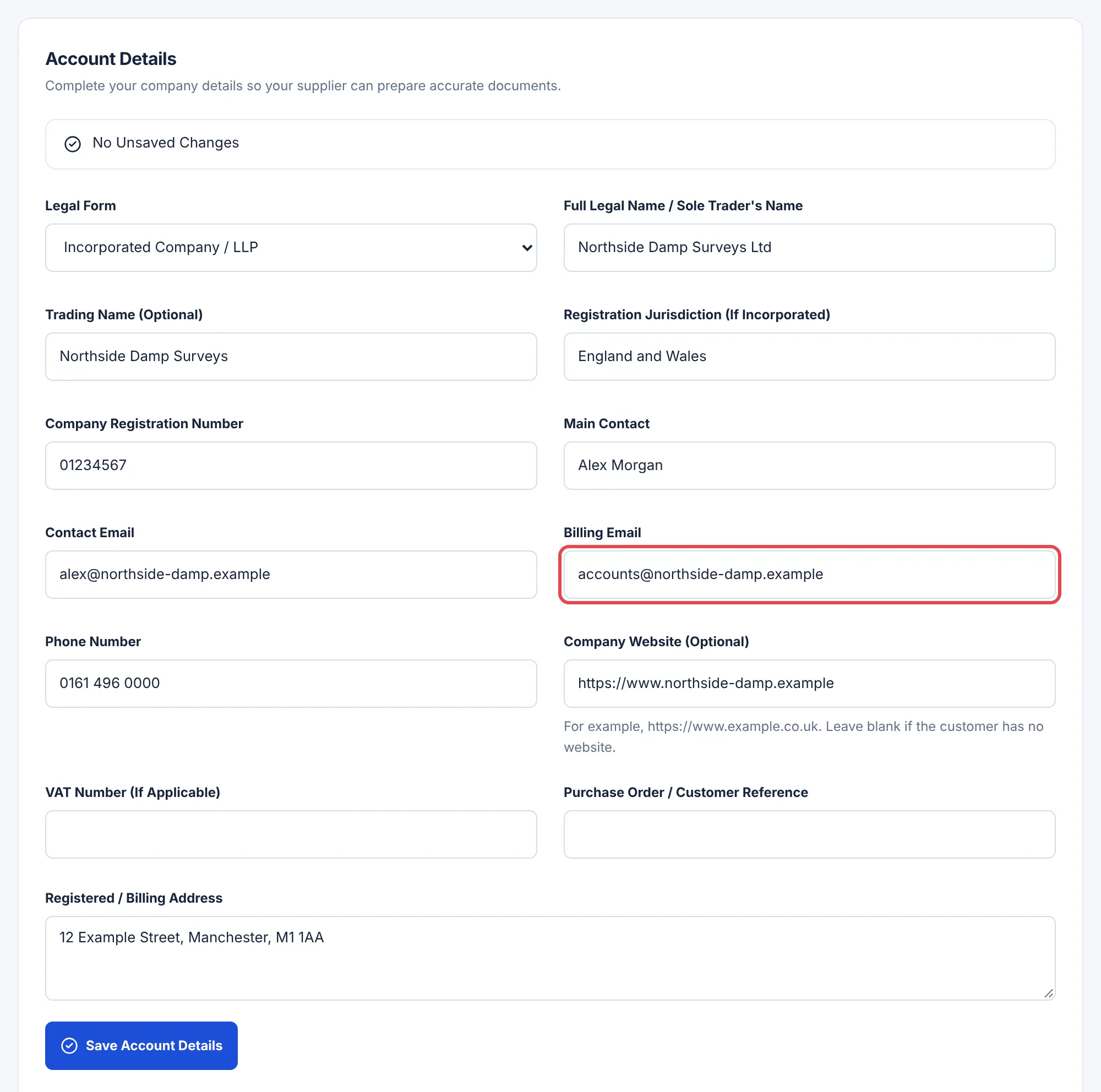
Check your legal name, legal form, address and contacts before we send your agreement. We use them on every agreement and invoice.
 (opens full size in a new tab)
Sole traders use their full personal name as the legal name. Add a purchase order number if your finance team needs one on invoices. Choose Save Account Details when you’re done.
My Profile
Choose your name in the side menu to open My Profile. Your name and job title fill in for you the next time you sign a document, and you still check them each time.
Under Sign-In Methods, connect Google, Apple or Microsoft so you can sign in with one button next time. Refresh and Sign Out are in the same menu.
Download Your Account Data
Open Account Data and choose Export Account Data. Include PDFs and attachments if you want your agreements, invoices and receipts too, then choose Download ZIP when it’s ready.
Still Stuck?
Tell us what you were trying to do and what you can see. Include your company name, your Organisation ID from the top of your B2B Account and, for a device, its Installation Reference. Never send an activation code or a password.