Step-by-step guide · OpenWeatherMap
Add your own weather key
In a survey's Weather & Orientation section, Pro can fetch the temperature, humidity, wind and conditions at the property. That works straight away through our shared weather service, up to a daily limit on each device.
We recommend every Pro user adds their own OpenWeatherMap key. It removes our daily weather limit, and OpenWeatherMap's starter plan normally covers survey use at no cost.
Checked against the providers' own pages on 22 September 2026.
- Time needed
- About 5 minutes, then up to 2 hours for OpenWeatherMap to switch the key on.
- You will need
- An email address and DampApp Pro Pro.
- What it costs
- Normally nothing: their starter plan covers typical survey use. Very heavy use could be charged.
- Payment card?
- OpenWeatherMap may ask for one. Skip any paid subscription they offer.
Before you start
Ignore the paid subscriptions on their website
OpenWeatherMap's site promotes paid products such as the One Call API and Weather Maps 2.0. You do not need either for live weather in DampApp Pro: the key you get when you sign up is enough.
Older instructions, including ours, said to subscribe to “One Call 3.0” with a card. OpenWeatherMap has since replaced that product, and the app's live weather does not need it.
Step by step
Step 1: Create an OpenWeatherMap account
Sign up with your email address and a password, then confirm your email from the message they send you.
Create an account (opens in a new tab)If they ask for a payment card, read what it is for on their plans and prices (opens in a new tab) page. Do not start a paid subscription: live weather in DampApp Pro does not need one.
Step 2: Copy your key
Once signed in, open the “API keys” tab. A key called Default is already there for you. Copy the long string of letters and numbers next to it.
Open your API keys (opens in a new tab)Step 3: Give it up to 2 hours to switch on
OpenWeatherMap switches new keys on automatically, but it can take up to 2 hours. If you try the key before then, the weather fetch fails. That is normal: wait, then try again.
Step 4: Paste the key into DampApp Pro
Go to SettingsIntegrations and scroll to “OpenWeather Maps”.
- Paste your key into the first box, “OpenWeatherMap API Key”. Older versions of the app call it “OWM One Call 3.0 API Key (Metrics)”; your key works there too.
- Leave the second box, “OWM Maps 2.0 API Key (Overlays)”, empty (see below).
- Tap “Save & Sync Settings”.
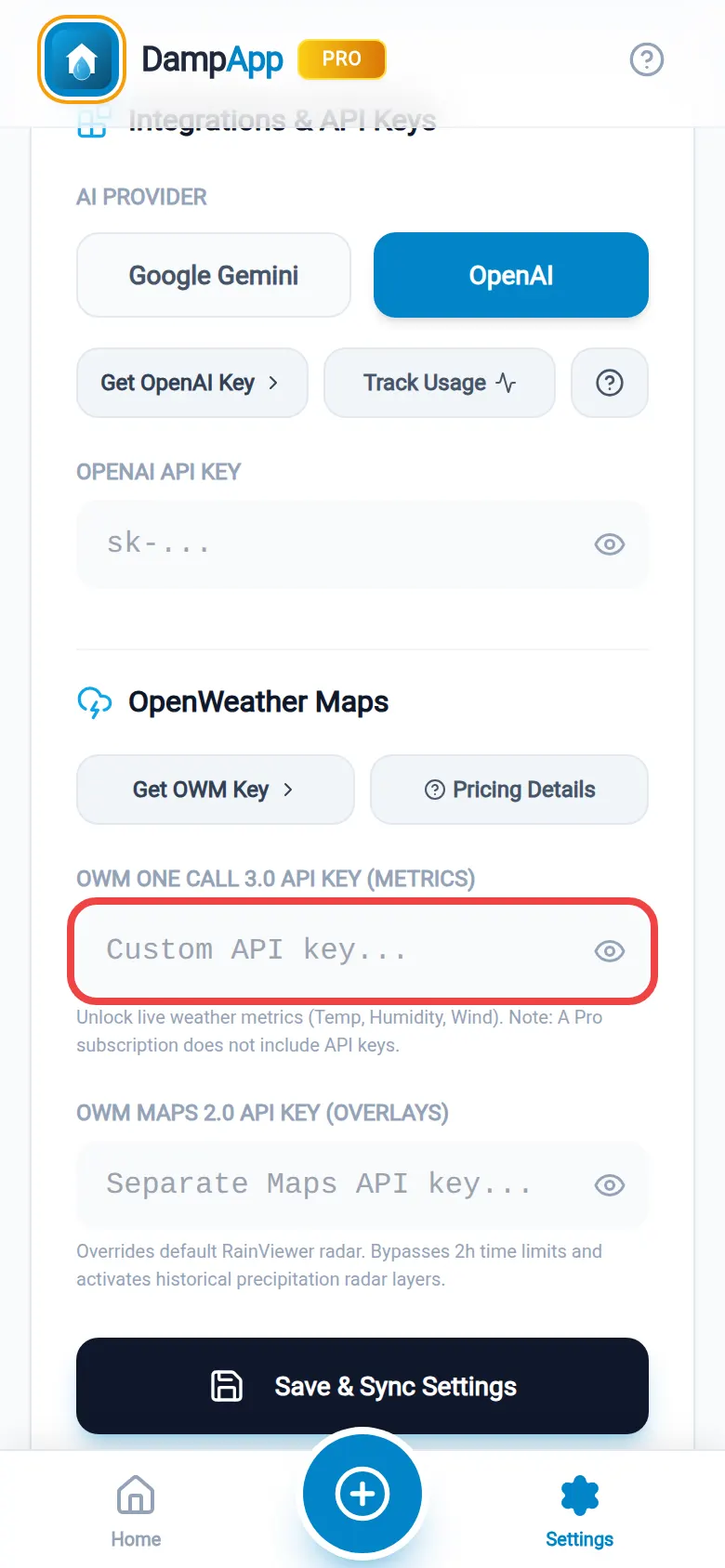
Paste into the first weather box. 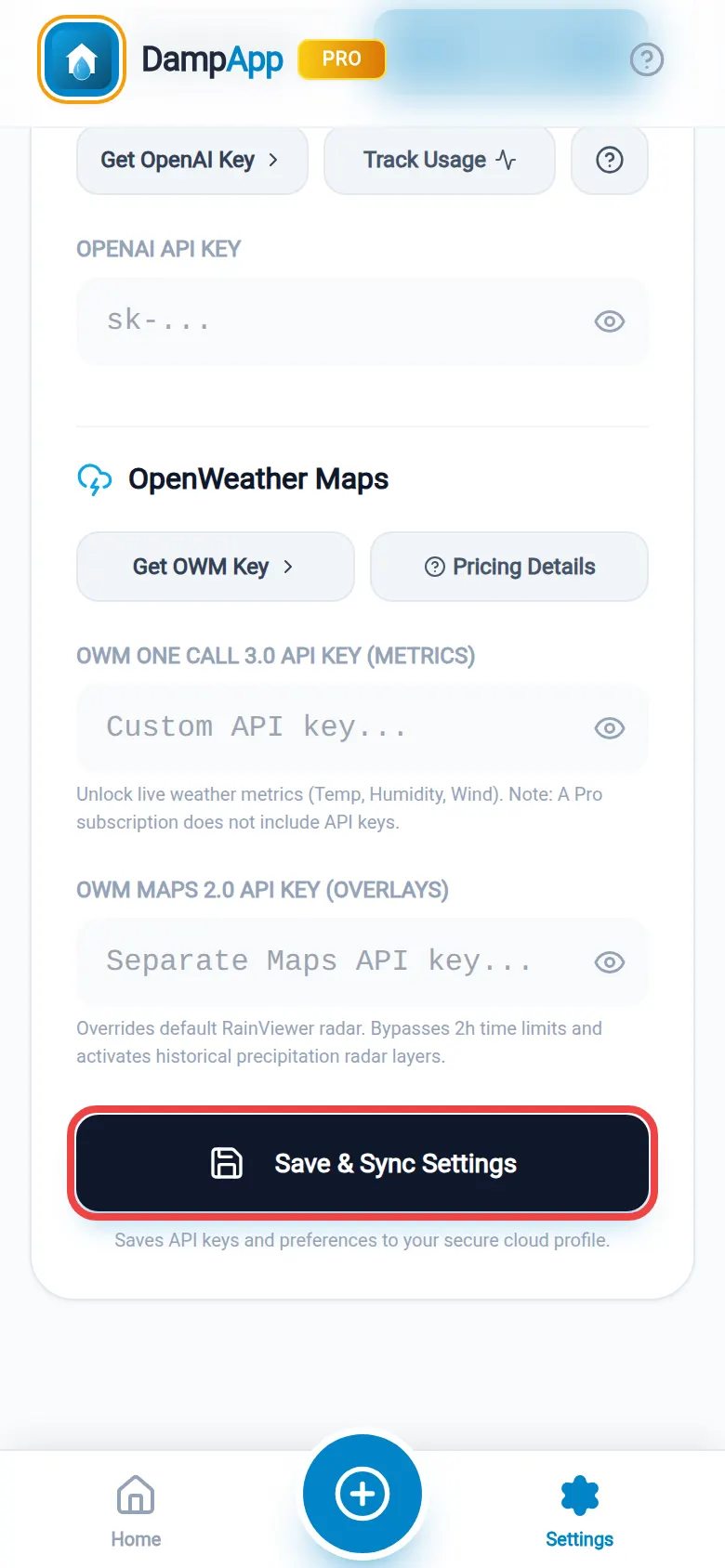
Then Save & Sync Settings. Step 5: Check it works
Open a survey that has a property address, go to “Weather & Orientation” and tap “Fetch Weather”. The temperature, humidity and conditions fill in for you.
The second box (radar overlays)
The small map in the weather section shows rain from RainViewer, which is free and needs no key. It shows the last two hours and can run about ten minutes behind. A clear sky shows no overlay, which is correct.
The “OWM Maps 2.0 API Key (Overlays)” box is only for people who already pay OpenWeatherMap for a plan that includes Weather Maps 2.0, which adds historical rain and cloud layers. OpenWeatherMap sells that as part of its larger paid plans, so most surveyors should leave this box empty. See their plans and prices (opens in a new tab).
If something goes wrong
| What you see | What it usually means | What to do |
|---|---|---|
| “Daily Limit Reached” | You have used today's shared weather allowance on this device. | Add your own key using the steps above. |
| Fetching fails just after you added the key | OpenWeatherMap has not switched the key on yet. | Wait up to 2 hours, then tap Fetch Weather again. |
| Fetching fails with a key that used to work | The key was deleted or switched off in your OpenWeatherMap account, or pasted with a space. | Copy it again from the API keys page, paste, and Save & Sync Settings. |
| “Property Address is empty” | The app needs an address to know where to look. | Fill in the property address in the survey details first. |
| No rain on the radar map | It is not raining there in the last two hours. | Nothing. The radar shows real rain only. |
Questions people ask
Do I have to add a weather key?
No, but we recommend it. Pro fetches live weather through our shared service, with a daily limit on each device. Your own key removes that limit.
What about weather for a survey I did last week?
When the survey date is in the past, the app looks up historical weather from a free archive (Open-Meteo), so you do not need a paid OpenWeatherMap plan for that either. You can always type your own readings instead.
Could OpenWeatherMap ever charge me?
It is unlikely. Typical survey use stays well within their starter plan, and paid subscriptions are something you would have to choose. But if they have your payment card, very heavy use beyond that plan could be charged, so check their plans and prices (opens in a new tab) page for the current limits.
Can I type my own readings instead?
Yes. Every weather value can be typed or corrected by hand, for example from your own hygrometer.
- Want the full picture of the weather section? Read Weather integration in the Help Centre.
Official help from the provider
These are the provider's own pages. They are the final word if anything here looks different on your screen, because providers change their websites from time to time.
Related guides
Still stuck?
Tell us which step you reached and what you can see on screen. A screenshot helps a lot. We answer every message ourselves.