Step-by-step guide · Google Gemini
Set up your own Google Gemini key, with billing and a spend cap
This guide gets you a Google Gemini key for DampApp Pro's AI tools, switches on billing so it keeps working all day, and sets a monthly cap so you stay in control of the cost. Every step says exactly what to press.
Not sure whether you want Gemini or OpenAI? Read Which AI provider should I choose? first.
Checked against the providers' own pages on 22 September 2026.
- Time needed
- About 15 minutes. A computer is easiest for steps 1 to 5.
- You will need
- A Google account (Gmail is fine), a payment card, and DampApp Pro Pro.
- What it costs
- New accounts usually buy credit first: US$5 minimum, plus VAT in the UK. Typical use is around a US cent per AI action.
- Is it free?
- Only just. Google's free allowance is now very small, so for everyday survey work you need billing turned on.
Before you start: why billing
Google still offers a free Gemini allowance, but it is now very small. Google cut it sharply in December 2025 and no longer publishes the figures; developers report around 20 requests a day for the Flash models. A single survey can use that up before lunch, and then the AI tools stop with a “quota” or “rate limit” message. That is why we recommend turning billing on.
- You pay Google, not us. Your DampApp Pro subscription does not include Google's charges. Google bills you directly for what you use.
- Google's US$300 free trial does not cover Gemini. Google says trial credit cannot be used for the Gemini API.
- Most new accounts prepay. You buy credit first (at least US$5), and when it runs out the AI simply stops. That makes the balance a built-in spending limit. Credit expires after a year.
- Billing also keeps your clients' data out of Google's training. On the free tier, Google may use what you send to improve its products and people may review it, unless you are in the UK, EEA or Switzerland, where Google applies its paid-tier protections to everyone. With billing on, Google says it does not use your prompts or photos to improve its products, wherever you are.
Had a key since before summer 2026?
Google now makes a newer type of key. It says the Gemini API rejects older Standard keys from September 2026. If your key stopped working, check the “Key Type” column in AI Studio: if it says Standard, create a new key (step 2) and paste it into the app.
Step by step
Step 1: Open Google AI Studio and sign in
Sign in with your Google account. The first time, Google asks you to accept its terms, then creates a project and a key for you automatically.
Open Google AI Studio (opens in a new tab)A “project” is just Google's name for the folder your key and bill live in. You do not need to change anything in it.
Step 2: Create your key
On the API keys page, click “Create API key”. If Google asks which project to use, pick the one it made for you. Your new key appears in the list.
- If Google already made a key for you in step 1, you can use that one.
- Keys made since 28 May 2026 are automatically limited to the Gemini API, which is what you want.
- You will copy the key in step 6, so leave this page open.
Step 3: Turn on billing
Open the Projects page and click “Set up billing” in the “Billing Tier” column next to your project. (Google also shows a “Set up billing” link on other pages; any of them works.)
Open the Projects page (opens in a new tab)- Choose your country and accept the terms.
- Add your payment card.
- If Google asks you to prepay, buy the smallest amount it offers (at least US$5). If it offers a choice between “Prepay” and “Postpay”, choose Prepay: the AI then stops when your credit runs out, so you can never owe more than you paid.
UK customers pay 20% VAT on top. Google says the higher usage limits usually switch on within a few minutes.
Step 4: Leave auto-reload off
On the Billing page, Google offers “Auto-Reload”, which buys more credit whenever you run low. It is optional. Leave it off if you want your balance to be the most you can spend, and top up by hand when you need to.
Open the Billing page (opens in a new tab)If you do turn it on, set its “Monthly Auto-Charge Limit” so it can only top up so much each month.
Step 5: Set a monthly spend cap
This is your safety net, and essential if you chose Postpay. Open the Spend page, find “Monthly spend cap”, click “Edit spend cap”, type an amount such as 10 (US dollars) and save.
Open the Spend page (opens in a new tab)Google labels the cap “experimental” and says it can take about ten minutes to kick in, so spending can go slightly over. Google also caps new billing accounts itself, at US$250 a month on its first usage tier.
Step 6: Paste the key into DampApp Pro
On your phone or tablet, open DampApp Pro and go to SettingsIntegrations. Settings is the gear at the bottom right of the home screen.
- Under “AI Provider”, tap “Google Gemini”.
- Tap the “Google Gemini API Key” box and paste your key. It is a long string of letters, numbers and symbols. Google changed its key format in 2026, so yours may not look like the grey example in the box. Tap the eye icon to check it pasted in full, with no space at the end.
- Scroll down and tap “Save & Sync Settings”.
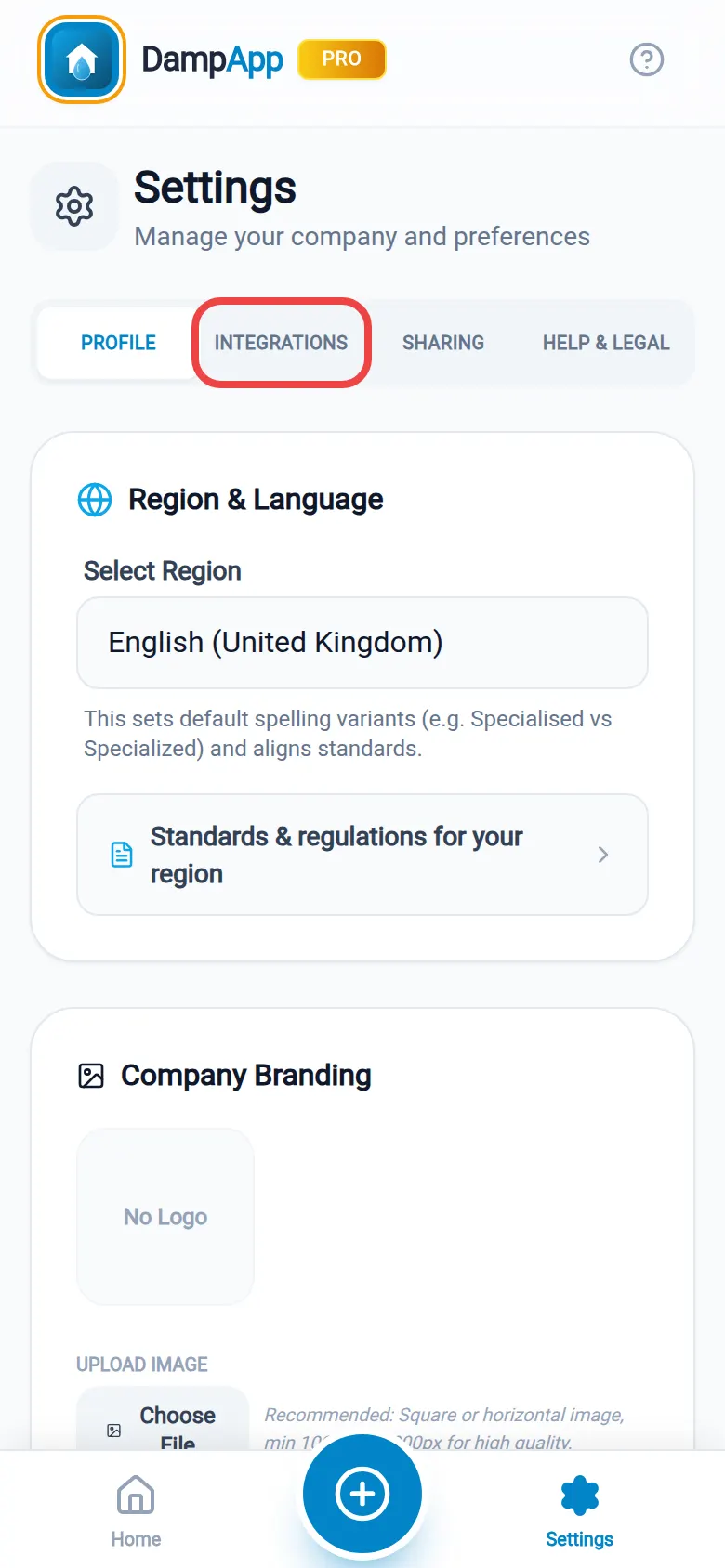
1. Settings, then the Integrations tab. 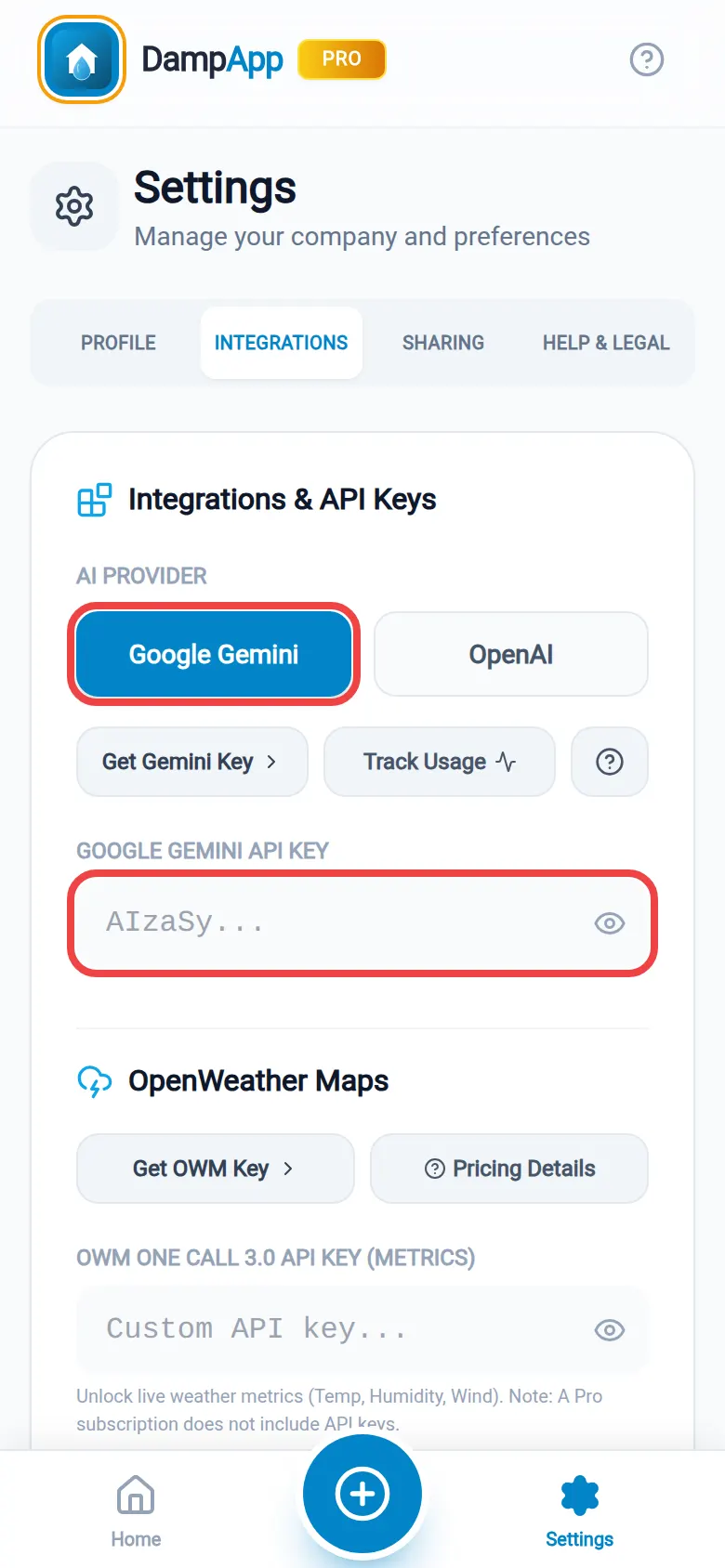
2. Tap Google Gemini, then paste into the key box. 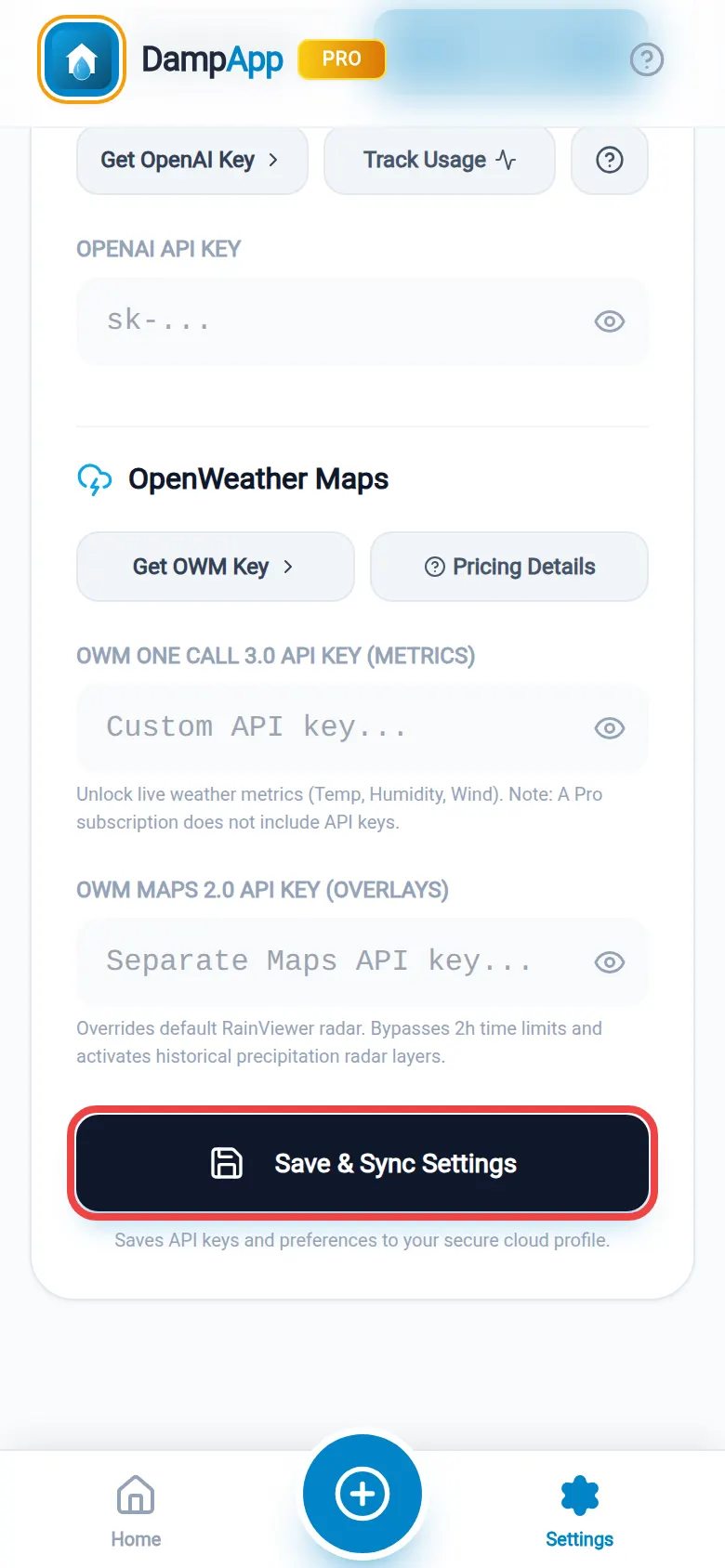
3. Save & Sync Settings. The Integrations tab shows these boxes to Pro subscribers. If you are signed in, saving also keeps the key in your secure cloud profile, so it follows you to your other devices.
Step 7: Check it works
Open any survey, type a rough note into a text box that has an “AI Polish” button (for example “damp patch by back door, plaster blown”), then tap “AI Polish”. It has a sparkle icon. If the note comes back rewritten, you are done. You will not see the app's daily AI limit again while your key is saved.
If you see a message instead, look it up in If something goes wrong below.
Getting the key onto your phone
The easiest way is to open aistudio.google.com/apikey (opens in a new tab) in your phone's browser, sign in, tap the copy icon next to your key, then paste it into the app. You can do the billing steps on a computer and just this last bit on the phone.
What will it cost?
Google charges by the amount of text and pictures the AI reads and writes. The app asks for Google's latest “Flash” model, which is its fast, lower-cost range. Our estimates, before VAT:
| What you do in the app | Rough cost each |
|---|---|
| AI Polish on a paragraph of notes | About half a US cent to 1.5 cents |
| AI Image Analysis of 1 to 4 photos | About 1 to 2 US cents |
| AI executive summary for a whole report | Around 1 to 2 US cents |
| A busy month: around 300 AI actions | Roughly US$2 to $7 |
Estimated from Google's published Flash prices (for example Gemini 3.5 Flash at US$1.50 per million word-pieces read and US$9 per million written). Google's newest models also “think” before answering and charge for that, so costs vary. Your real spend is on the Usage (opens in a new tab) and Spend (opens in a new tab) pages.
Keep your key safe
Your key lets anyone who has it use your Google credit, so treat it like a card number.
- Never post it online, email it to someone else, or share a screenshot that shows it.
- DampApp Pro support will never ask for your key.
- Google blocks keys it finds published online. You would then see a message that your key was “reported as leaked”: delete it and create a new one.
- If your key says “Unrestricted” in AI Studio, hover over that label, choose “Add restrictions”, then “Restrict to Gemini API only” and “Restrict key”. Google now blocks unrestricted keys that sit unused for a long time.
If something goes wrong
| What you see | What it usually means | What to do |
|---|---|---|
| “API Rate Limit Exceeded” | You are on the small free allowance and it is used up, your prepaid credit has reached zero, or your spend cap has been reached. | Turn on billing (step 3), top up on the Billing page (opens in a new tab), or raise your cap on the Spend page (opens in a new tab). Free daily allowances reset at midnight US Pacific time (8am UK time). |
| “API Key required” or “API key missing”, even though you pasted one | Google did not accept the key. It was copied only in part, has a space at the end, was deleted, or is an older Standard key. | Create a new key (step 2), paste it again and tap Save & Sync Settings. |
| It worked for months, then stopped | Most likely an older Standard key, which Google stops accepting from September 2026. | Check the “Key Type” column in AI Studio and make a new key if it says Standard. |
| “Free tier is not available in your country” | Google only offers Gemini to you with billing turned on. | Turn on billing (step 3). |
| “Failed to polish text” or a similar failure | Often the same quota problem, or a brief outage at Google. | Wait a minute and try again. If it keeps happening, check your balance and cap as in the first row. |
Questions people ask
Do I have to use my own key?
No. Pro includes a daily AI allowance through our own service, and Free includes a small monthly allowance. Your own key is for people who use the AI tools a lot and want no daily cap. When the app shows “Daily Limit Reached”, that is the moment a key helps.
Can I skip billing and stay on the free tier?
You can, but expect the AI to stop after a handful of uses each day, and outside the UK, EEA and Switzerland Google may use what you send to improve its products. For client work we recommend billing.
Do I need to use the Google Cloud console?
No. AI Studio creates the Google Cloud project and billing link for you. The Cloud console is only needed for extras such as budget alert emails.
Can I get an email when I have spent a certain amount?
Yes, with a Google Cloud budget: in the Google Cloud console go to Billing, then “Budgets & alerts”, then “Create budget”. Google emails you at 50%, 90% and 100% by default. A budget only sends emails; it does not stop spending. Use the spend cap in step 5 for that. See Google's budget guide (opens in a new tab).
What happens when my credit runs out?
The AI tools stop and the app shows a rate-limit message. Nothing else in DampApp Pro is affected: you can keep surveying, typing and exporting PDFs. Add credit on the Billing page and the AI tools work again.
Does my Gmail or Google Workspace subscription include this?
No. The Gemini API is billed separately through AI Studio, whatever other Google subscriptions you have.
How do I remove or change my key?
Go to SettingsIntegrations, clear or replace the text in “Google Gemini API Key”, and tap “Save & Sync Settings”. With the box empty, the app goes back to the allowance included with your plan.
Official help from the provider
These are the provider's own pages. They are the final word if anything here looks different on your screen, because providers change their websites from time to time.
- Google AI Studio: API keys (opens in a new tab)
- Google AI Studio: Projects (set up billing) (opens in a new tab)
- Google AI Studio: Billing and auto-reload (opens in a new tab)
- Google AI Studio: Spend (monthly spend cap) (opens in a new tab)
- Google AI Studio: Usage (opens in a new tab)
- Gemini API docs: using API keys (opens in a new tab)
- Gemini API docs: billing (opens in a new tab)
- Gemini API docs: rate limits and usage tiers (opens in a new tab)
- Gemini API docs: prices (opens in a new tab)
- Gemini API terms (how Google uses your data) (opens in a new tab)
- Google Cloud: budgets and alert emails (opens in a new tab)
- Gemini API docs: troubleshooting (opens in a new tab)
Related guides
Still stuck?
Tell us which step you reached and what you can see on screen. A screenshot helps a lot. We answer every message ourselves.