Step-by-step guide · OpenAI
Set up your own OpenAI key, with a spending limit
This guide gets you an OpenAI key for DampApp Pro's AI tools, paid for with credit you buy in advance, with a hard monthly limit so you can never be surprised by a bill. No technical knowledge needed: every step says exactly what to press.
Not sure whether you want OpenAI or Google Gemini? Read Which AI provider should I choose? first.
Checked against the providers' own pages on 22 September 2026.
- Time needed
- About 15 minutes. A computer is easiest for steps 1 to 4.
- You will need
- An email address, a payment card, and DampApp Pro Pro (the key boxes are in Pro).
- What it costs
- You buy credit first: US$5 minimum. Typical survey use is well under a US cent per AI action.
- Is ChatGPT Plus enough?
- No. A ChatGPT subscription does not cover this. OpenAI bills the two separately.
Before you start
Three things are worth knowing, because they are where most people get stuck:
- OpenAI's developer site is not ChatGPT. You can sign in with the same login, but it has its own billing. Paying for ChatGPT Plus or Pro does not give you any API credit.
- You pay OpenAI, not us. Your DampApp Pro subscription does not include OpenAI's charges. They bill your card directly for what you use.
- A key only works once there is credit on the account. OpenAI is pay-as-you-go with credit bought in advance. With no credit, the AI tools stop with a “quota” message.
The safest set-up for most surveyors
Buy US$10 of credit, switch auto recharge off and set a hard monthly limit. Then the most you can ever spend is the credit you chose to buy. Steps 2 to 4 below do exactly this.
Step by step
Step 1: Create your OpenAI developer account
Open OpenAI's developer site and choose “Sign up”, or “Log in” if you already use ChatGPT (the same email and password work).
Open platform.openai.com (opens in a new tab)OpenAI may ask you to confirm your email address and phone number, and to name your organisation. Your own name or your company name is fine.
Step 2: Add prepaid credit
Open the Billing page, add a payment card, then choose “Buy credits” or “Add to credit balance” (OpenAI shows one or the other).
Open the Billing page (opens in a new tab)- The smallest amount you can buy is US$5. OpenAI's default is $10, which lasts most surveyors a long time.
- Credit expires one year after you buy it, so there is no benefit in buying a lot up front.
- Allow a few minutes after paying for the balance to show before you try the AI tools.
Step 3: Switch off auto recharge
OpenAI turns “Auto recharge” on by default while you set up billing. It quietly buys more credit on your card whenever your balance runs low.
On the same Billing page, find “Auto recharge” and turn it off. Your prepaid balance then becomes the most you can spend. You can always top up by hand later.
Prefer to leave it on?
That is fine for heavy users who never want the AI to stop mid-survey. If you do, make sure you also complete step 4, because OpenAI says a recharge limit is not a spending limit.
Step 4: Set a hard monthly spending limit
This is your safety net. Open the Limits page and, in the “Spend” section:
Open the Limits page (opens in a new tab)- Select “Edit spend limit”.
- Type a “Monthly spend limit”, for example 10 (US dollars).
- Turn on “Enforce a hard limit”. This is the important bit. Without it, the limit only sends you an email and the AI keeps running.
- Select “Save”.
OpenAI says its limits are not instant, so spending can go very slightly over the figure you set. When the limit is reached, the AI tools stop until the next calendar month or until you raise it.
Step 5: Create your secret key
Tip: do this step on the phone or tablet you survey with, so you can copy the key and paste it straight into the app.
Open the API keys page (opens in a new tab)- Select “+ Create new secret key”.
- Give it a name you will recognise, such as DampApp Pro on my iPhone.
- Leave “Permissions” on “All”. The Restricted and Read only options can stop the app from using the AI.
- Confirm to create it, then copy the key straight away. OpenAI shows the full key only once.
Lost the key before you pasted it?
No problem. Delete it with the bin icon on the API keys page and create another. Keys are free to make and delete.
Step 6: Paste the key into DampApp Pro
On your phone or tablet, open DampApp Pro and go to SettingsIntegrations. Settings is the gear at the bottom right of the home screen.
- Under “AI Provider”, tap “OpenAI”.
- Tap the “OpenAI API Key” box and paste your key. It starts with sk- and is very long. Tap the eye icon to check it pasted in full, with no space at the end.
- Scroll down and tap “Save & Sync Settings”.
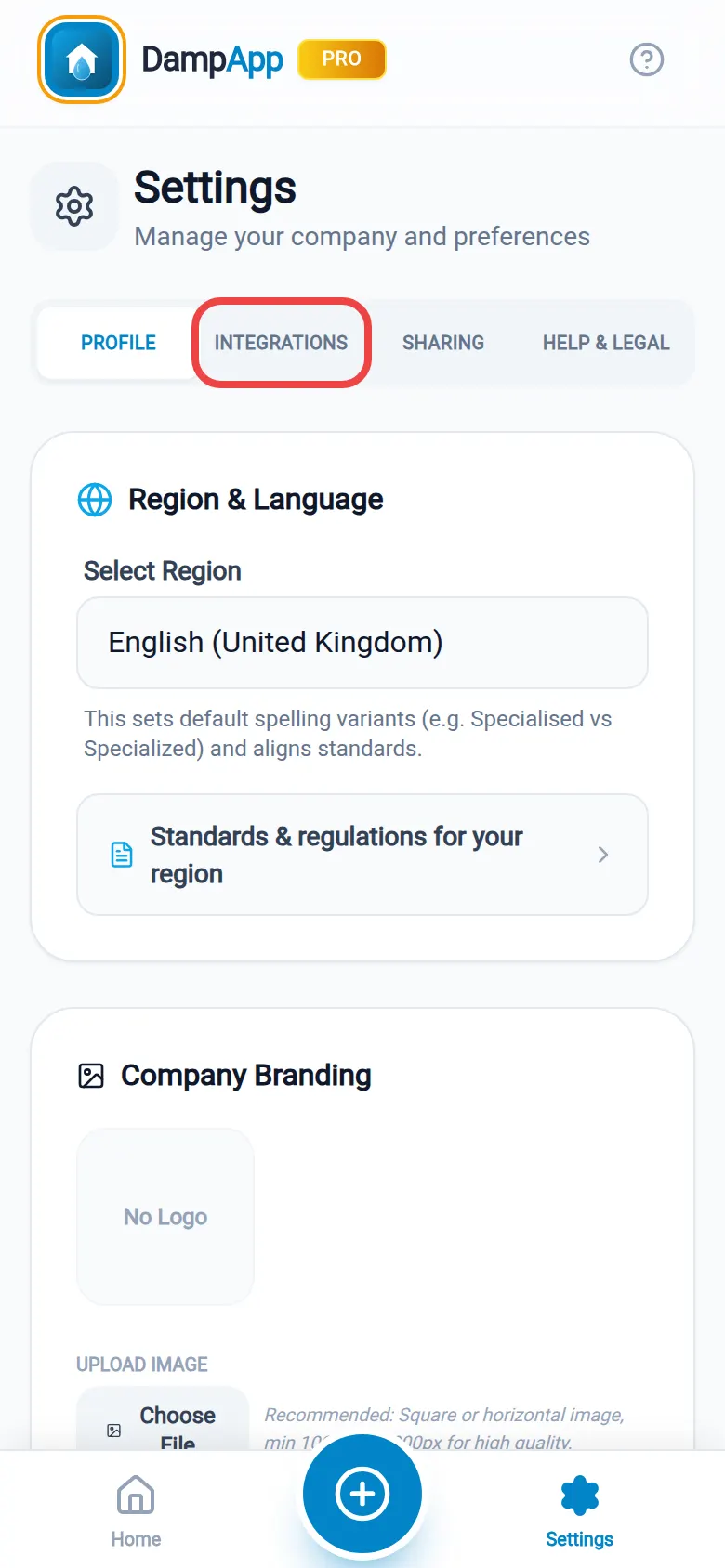
1. Settings, then the Integrations tab. 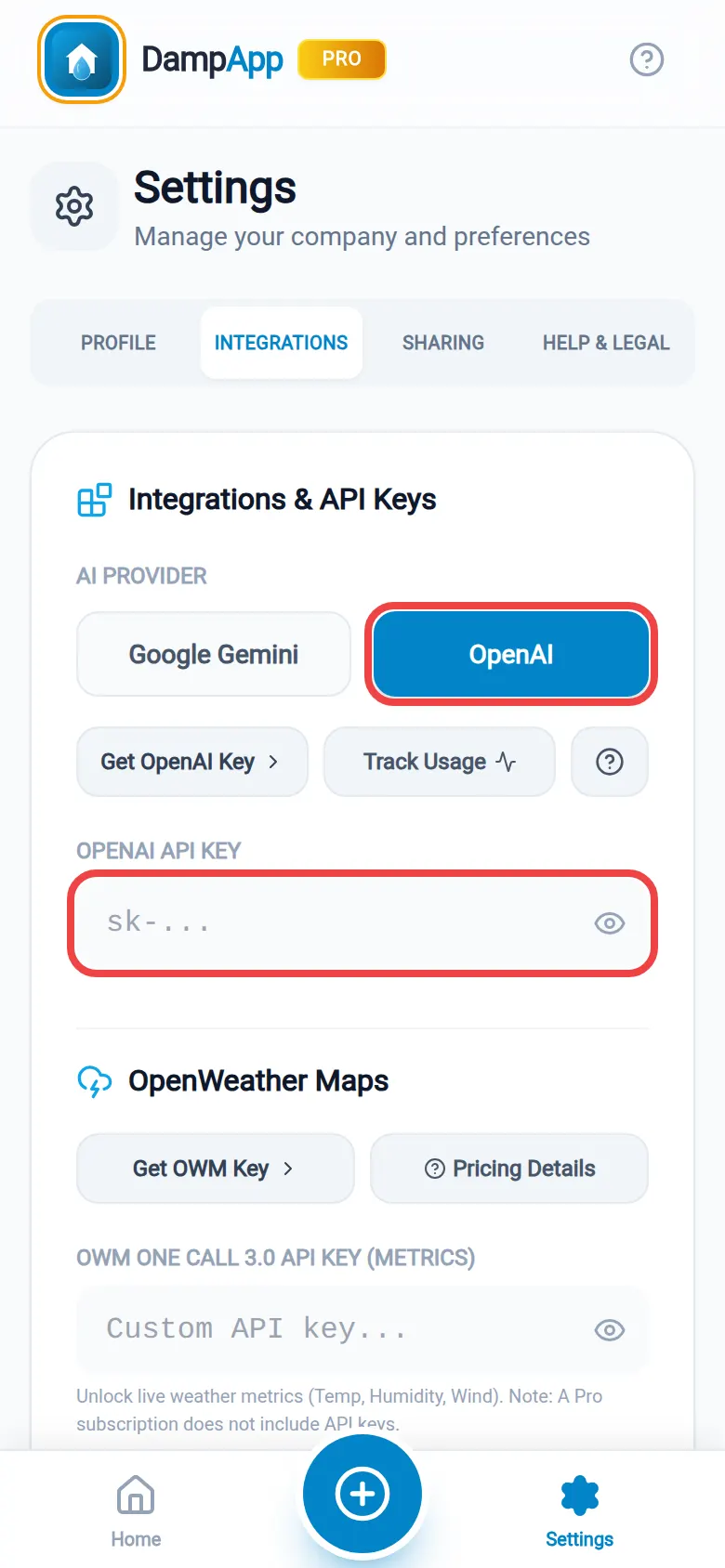
2. Tap OpenAI, then paste into the key box. 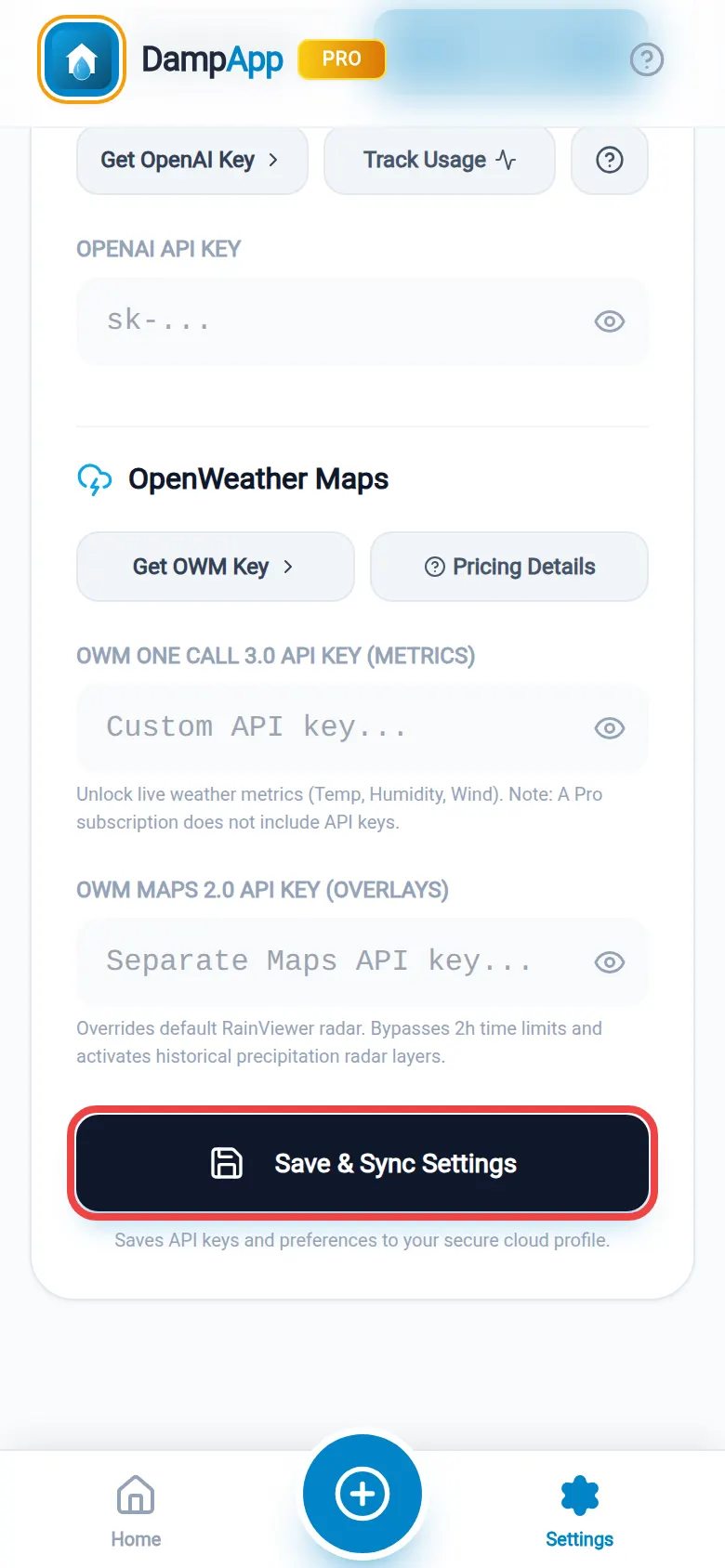
3. Save & Sync Settings. The Integrations tab shows these boxes to Pro subscribers. If you are signed in, saving also keeps the key in your secure cloud profile, so it follows you to your other devices.
Step 7: Leave the model on Automatic
After you paste a key, an “OpenAI Model” list appears under it. Leave it on the first option, “Automatic”. The app then picks OpenAI's newest low-cost model, which is fast, good at survey wording and one of the cheapest.
You can choose a bigger model from the list, but it will cost more per request and is rarely better for report wording.
Step 8: Check it works
Open any survey, type a rough note into a text box that has an “AI Polish” button (for example “damp patch by back door, plaster blown”), then tap “AI Polish”. It has a sparkle icon. If the note comes back rewritten, you are done. You will not see the app's daily AI limit again while your key is saved.
If you see a message instead, look it up in If something goes wrong below.
What will it cost?
OpenAI charges by the amount of text and pictures it reads and writes. For GPT-5.4 mini, which the app has picked automatically so far, our estimates are:
| What you do in the app | Rough cost each |
|---|---|
| AI Polish on a paragraph of notes | About US$0.003 (a third of a cent) |
| AI Image Analysis of 1 to 4 photos | About US$0.004 to $0.009 (under a cent) |
| AI executive summary for a whole report | Under US$0.01 |
| A busy month: around 300 AI actions | About US$1 to $3 |
These are our estimates from OpenAI's published prices for GPT-5.4 mini (US$0.75 per million word-pieces read, US$4.50 per million written) and typical survey use. From app version 1.10.24, Automatic picks GPT-6 Luna, which OpenAI prices lower (US$0.10 and US$0.50), so treat these figures as the most you should expect. Your real figures are on OpenAI's Usage page (opens in a new tab).
Keep your key safe
Your key is like a card number for your OpenAI account: anyone who has it can spend your credit.
- Never post it online, put it in an email to someone else, or share a screenshot that shows it.
- DampApp Pro support will never ask you for your key.
- If you think someone else has it, delete it on the API keys page. OpenAI says deleted keys stop working within seconds. Then create a new one and paste that into the app.
- OpenAI switches off keys it finds published on the internet, which is another reason never to post one.
What happens to the text and photos you send?
OpenAI says it does not use data sent through its API to train its models unless you opt in, and keeps it for up to 30 days for abuse monitoring. The app sends only what each tool needs: the note you polish, the photos you analyse or, for the executive summary, the client name, address and findings. See OpenAI: your data (opens in a new tab).
If something goes wrong
| What you see | What it usually means | What to do |
|---|---|---|
| “API Rate Limit Exceeded” or a message about quota or billing | Your credit has run out, your hard monthly limit has been reached, or too many requests went in one minute. | Check your balance on the Billing page (opens in a new tab) and your limit on the Limits page (opens in a new tab). If both are fine, wait a minute and try again. |
| It still fails straight after buying credit | OpenAI can take a few minutes to show new credit. | Wait five minutes, then try again. Making a new key does not speed this up. |
| “API Key required” or “API key missing”, even though you pasted one | OpenAI did not accept the key. It was copied only in part, has a space at the end, or has been deleted. | Create a new key (step 5), paste it again and tap Save & Sync Settings. |
| “Country, region, or territory not supported” | OpenAI does not offer its API where you are. | Check OpenAI's supported countries (opens in a new tab), or use Google Gemini instead. |
| Errors after choosing a model from the list | That model is not available to your account, or needs extra verification. | Set “OpenAI Model” back to “Automatic”. |
Questions people ask
Do I have to use my own key?
No. Pro includes a daily AI allowance through our own service, and Free includes a small monthly allowance. Your own key is for people who use the AI tools a lot and want no daily cap. When the app shows “Daily Limit Reached”, that is the moment a key helps.
Can I use my ChatGPT Plus or Pro subscription instead?
No. OpenAI keeps ChatGPT and the API on separate bills, and a ChatGPT subscription includes no API credit. You need prepaid API credit as in step 2.
What happens when my credit runs out?
The AI tools stop and the app shows a quota or rate-limit message. Nothing else in DampApp Pro is affected: you can keep surveying, typing and exporting PDFs. Top up on the Billing page and the AI tools work again.
Will my key work on my iPad as well as my phone?
Yes. If you are signed in when you tap “Save & Sync Settings”, your key is saved to your cloud profile and appears on your other devices when you sign in there. Otherwise paste it on each device.
How do I remove or change my key?
Go to SettingsIntegrations, clear or replace the text in “OpenAI API Key”, and tap “Save & Sync Settings”. With the box empty, the app goes back to using the allowance included with your plan.
Can I switch between OpenAI and Gemini?
Yes, at any time. Tap “Google Gemini” or “OpenAI” under “AI Provider”. The app uses whichever is selected and keeps both keys saved.
Official help from the provider
These are the provider's own pages. They are the final word if anything here looks different on your screen, because providers change their websites from time to time.
- OpenAI: API keys page (opens in a new tab)
- OpenAI: Billing (buy credit, auto recharge) (opens in a new tab)
- OpenAI: Limits (monthly spend limit) (opens in a new tab)
- OpenAI: Usage dashboard (opens in a new tab)
- OpenAI Help: prepaid billing explained (opens in a new tab)
- OpenAI Help: ChatGPT and API billing are separate (opens in a new tab)
- OpenAI docs: spend limits and alerts (opens in a new tab)
- OpenAI docs: error codes (opens in a new tab)
- OpenAI docs: how your data is used (opens in a new tab)
- OpenAI docs: supported countries (opens in a new tab)
Related guides
Still stuck?
Tell us which step you reached and what you can see on screen. A screenshot helps a lot. We answer every message ourselves.